

In InnoBooks, the
Schedule & Assignmentpage (menuTasks) is where you plan your team’s work: task and project assignments, leave requests and absences. You create each item with an employee, dates and a status, then track it on the calendar or in a list. Here’s the full walkthrough.
What you’ll need
- Permission to create assignments.
- Team members already invited, to assign the work to.
- A project already created, for project or task assignments.
Steps
- Open the Schedule & Assignment page
From the menu, open the
Taskspage. Its header readsSchedule & Assignment. Managers see the list of team members on the left and the calendar on the right.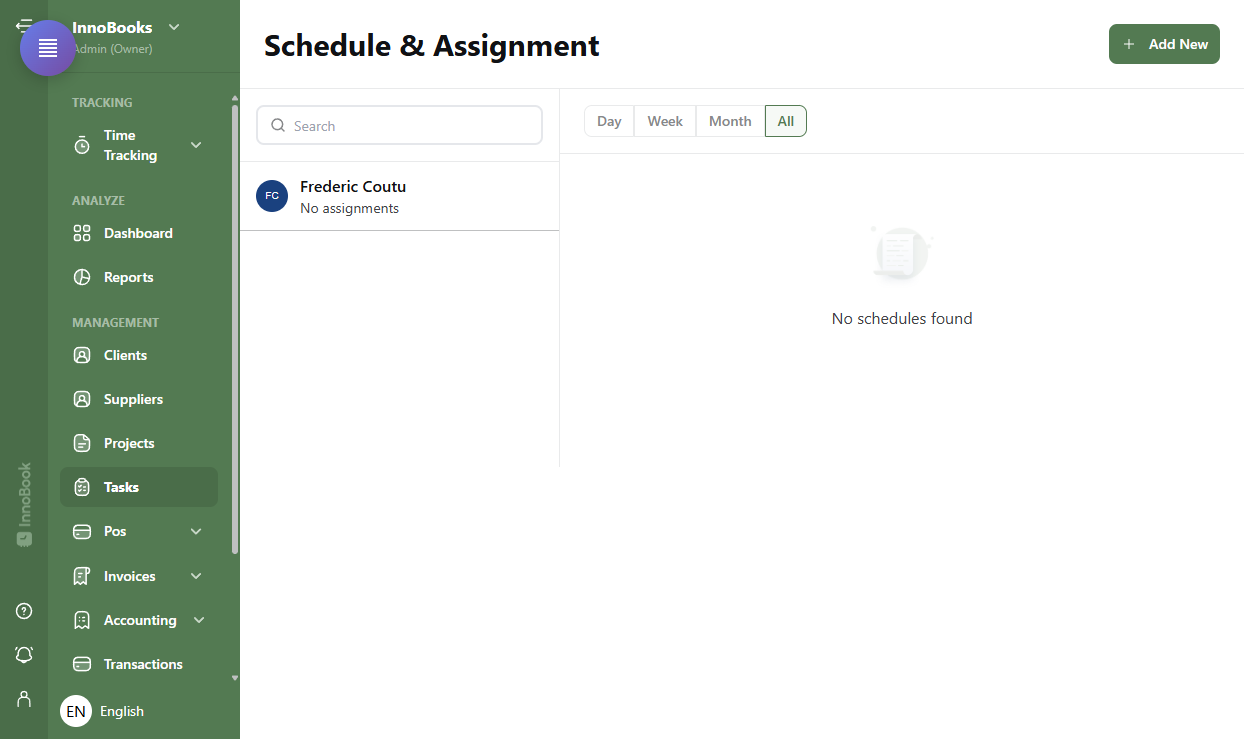
The Schedule & Assignment page with the member list on the left and the calendar on the right. - Create a new assignment
Click
Add Newat the top right. TheCreate New Schedulewindow opens. - Choose the category
At the top of the window, choose the category tab:
Task Assignmentfor a task, or elseProject Assignment,Leave RequestorAbsence. - Choose the employee and project
Select the person in
Employee. For a task or project assignment, also choose the relevantProject. - Set the status, dates and times
Set the
Statusif needed, then fill in theStart DateandStart Time, along with theEnd DateandEnd Time. InnoBooks warns you if the end comes before the start. - Describe and save
Add a
Descriptionif you wish (optional), then clickSave. The item appears right away on the calendar and in the list.

Tips & edge cases
- Switch the display between
Day,Week,MonthandAll: theAllview shows a list with the category, project, period, status and assigned person. - In the list view, edit or delete an item with the row actions; on the calendar, click an event to open its preview, then the pencil to edit it.
- An employee can only create
Leave RequestandAbsenceitems; project and task assignments are reserved for managers. - Each category has its own colored badge and status, so you can spot at a glance what’s pending or approved.
Frequently asked questions
How do I assign a task to an employee?
Click Add New, choose the Task Assignment tab, select the Employee and the Project, set the dates and times, then click Save.
Can I see all assignments in a list?
Yes. Choose the All view: assignments appear as a list with the category, project, period, status and assigned person, with pagination.
Can an employee create their own items?
An employee can create a Leave Request or an Absence, but not a project or task assignment: those categories stay reserved for managers.