

The
Timesheetspage in InnoBooks gathers all logged time, transport and expenses for a given employee and period. As a manager, you review them, then export a PDF that serves as the validated record for payroll or billing. Here’s the full walkthrough.
What you’ll need
- Employees who have already logged time, transport or expenses for the period.
- Permission to view the whole team’s timesheets (managers see the
Employeefilter and theAll Employeesoption; an employee sees only their own). - Permission to export the PDF.
Steps
- Open the Timesheets page
From the menu, open the
Timesheetspage. At first, a message prompts you to make a choice:Select an employee and a period to view the timesheet.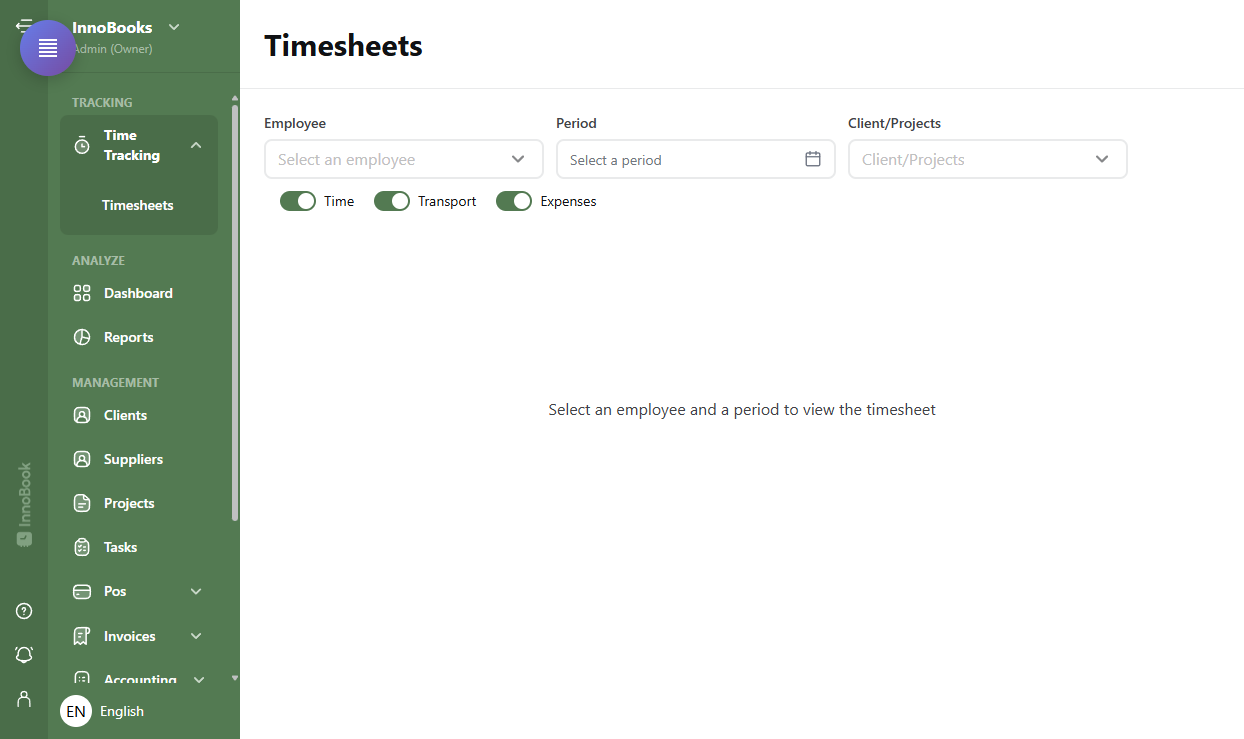
The Timesheets page with the Employee, Period and Client/Projects filters. - Choose the employee
In the
Employeefilter, select the person whose time you want to review, or chooseAll Employeesfor a view of the whole team. - Choose the period
In the
Periodfield, choose the date range to review. Preset periods are offered to move faster. - Filter and choose what shows
If needed, narrow it down by
Client/Projects. On the right, turn the three switchesTime,TransportandExpenseson or off to show only what you want to check. - Review the entries
First check the summary cards
Total Hours,Total TransportandTotal Expenses. Then go through theTime Entries,TransportandExpensessections, where each line shows the date, project, client and the amount or duration. - Export the validated PDF
Once everything checks out, click
Export PDFat the top right. InnoBooks generates a PDF of the timesheet (named by employee and period) that you keep as the validated record and pass on to payroll or billing.

Tips & edge cases
- An employee without manager access sees only their own timesheet: the
Employeefilter and theAll Employeesoption are reserved for managers. - Until an employee and a period are chosen, the page stays on the prompt message and nothing is displayed.
- The three switches
Time,TransportandExpensesonly change what’s shown on screen: the exported PDF always contains time, transport and expenses, whatever the switch positions. - The time you review comes from
Time Tracking; fix a wrong entry at the source before exporting.
Frequently asked questions
How do I review a specific employee’s timesheet?
Choose the person in the Employee filter, then a Period. Their Time Entries, Transport and Expenses appear with the totals, ready to review and export.
Can an employee see other people’s timesheets?
No. Without manager access, an employee is limited to their own timesheet: the Employee filter and the All Employees option don’t show for them.
How do I get a PDF record of the period?
After choosing the employee and the period, click Export PDF at the top right: InnoBooks generates the timesheet PDF, named after the employee and the date range.