

The
Waste & adjustmentspage keeps a log of everything that leaves your stock without being sold — expired food, overproduction, breakage, staff meals… Each adjustment removes (or adds back) quantities and prices the loss at cost, so you know what waste actually costs you.
What you’ll need
- The restaurant add-on active on your company.
- Permission to view waste (stock.adjustment.read) to open the page; to create it (stock.adjustment.create) for the
New adjustmentbutton; to delete it (stock.adjustment.delete) for the delete icon. - Your items already created in
Items & Services, ideally with aLast buying priceso the estimated cost shows up.
Steps
- Open Waste & adjustments
From the menu, open
Waste & adjustments. The page lists every adjustment line (one line = one adjusted item) and shows theTotal waste for the periodat the top, in red, for the filtered selection.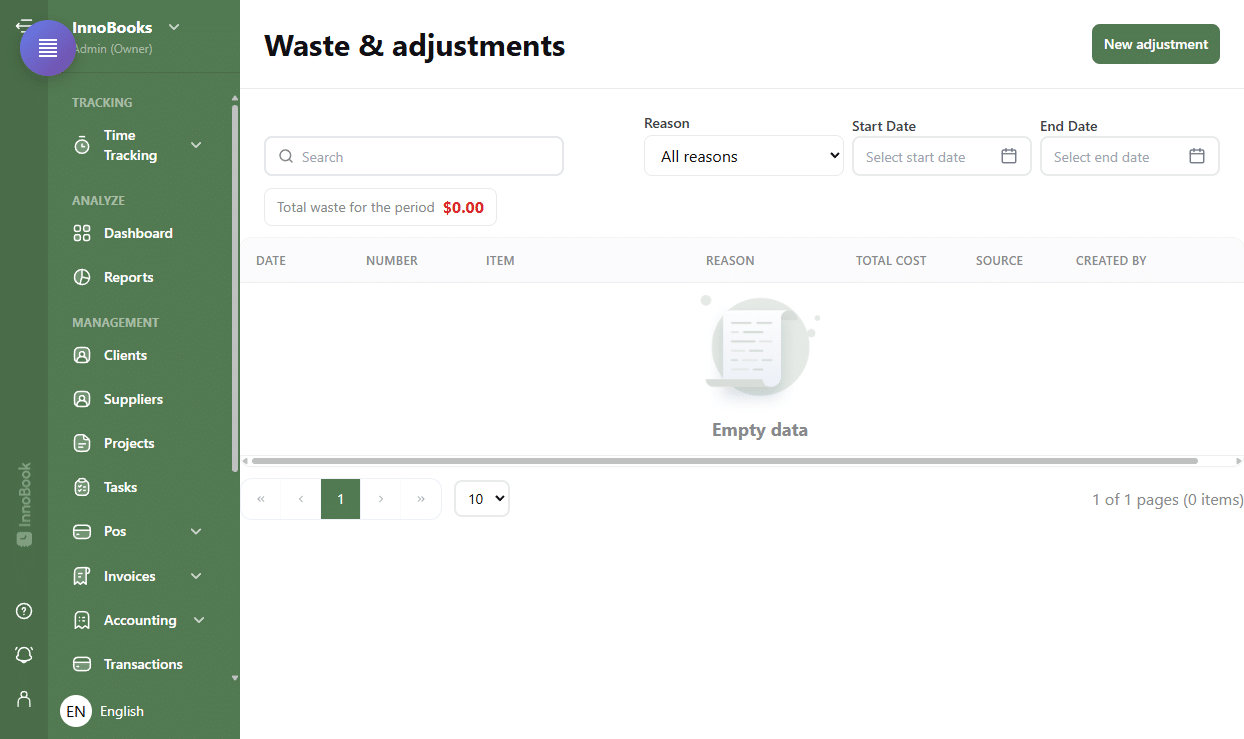
The “Waste & adjustments” page: red total-waste badge above the table. - Create a new adjustment
Click
New adjustment. In the dialog, pick theDate(required, today by default) and, if needed, a headerNotethat applies to the whole adjustment. - Add an item line
For each item, select it under
Item, choose the direction —Loss(default) orAddition— and enter theQuantityas a positive number (decimals are allowed). The line’sEstimated costis computed automatically from the item’sLast buying price; for a dish with no buying price it comes from its recipe, otherwise it stays “—”. Add more lines withAdd line. - Choose a reason
Select the
Reasonthat explains the removal:Expired,Spoiled,Overproduction,Preparation error,Breakage,Staff meal,Theft,Inventory correctionorOther. The reason is required and is then used to filter and analyse your waste. - Check the total and save
The
Estimated totalsums the line costs at the bottom of the dialog. Save: aLossremoves the quantity from stock, anAdditionadds it back. The entry made here is taggedWebas its source. - Track and filter the journal
Back in the journal, filter by
search, byReason(orAll reasons) and by period (Start Date/End Date). Each line shows theDate,Number,Itemand its quantity,Reason,Total cost,Source(WeborPOS) andCreated by. TheTotal waste for the periodrecalculates with your filters.

Tips & edge cases
- Quantity is always entered as a positive number: it’s the direction (
LossorAddition) that decides whether stock goes down or up. - The
Estimated costat entry is indicative; the cost actually recorded is fixed at save time (the server is authoritative). For a dish, the cost comes from its recipe when there is no buying price. - Deleting an adjustment restores the stock: InnoBooks asks to confirm with “Stock will be restored.” before deleting.
- The
Sourcecolumn tells waste entered here (Web) apart from waste created on the POS (POS). - The dashboard shows a
Waste & adjustmentswidget with three charts:Waste over time,Waste by reasonandTop wasted items.
Frequently asked questions
Do I need to enter a negative quantity for a loss?
No. Always enter a positive quantity and choose the Loss direction: InnoBooks applies the sign automatically and removes the quantity from stock. Choose Addition to add stock back.
How is the cost of a loss calculated?
Quantity × the item’s Last buying price. For a dish with no buying price, the cost comes from its recipe. The amount shown at entry is an estimate; the final cost is fixed on save.
Where do I see my waste charts?
On the dashboard: the Waste & adjustments widget shows waste over time, by reason and the top wasted items, with a period filter. The Waste & adjustments page itself is for entering and reviewing the detail.