

Your client directory is the starting point for invoicing, projects and payment tracking in InnoBooks. It’s where you add each client’s contact details, find them by search or status, and open a detail page grouping the
Profile,Infrastructure,ProceduresandNotestabs. Here’s how to keep this directory up to date.
What you’ll need
- A business selected in InnoBooks (if none is chosen, InnoBooks prompts you to pick one first).
- Permission to create clients (the
New clientbutton) and, to edit or delete, the matching permissions. - The client’s contact details to enter: at a minimum the
Client name, which is the only required field.
Steps
- Open the Clients page
From the menu, open the
Clientspage. At the top, four tiles summarize your portfolio:Active clients,Total overdue,Total outstandingandTotal amount. The client list appears below.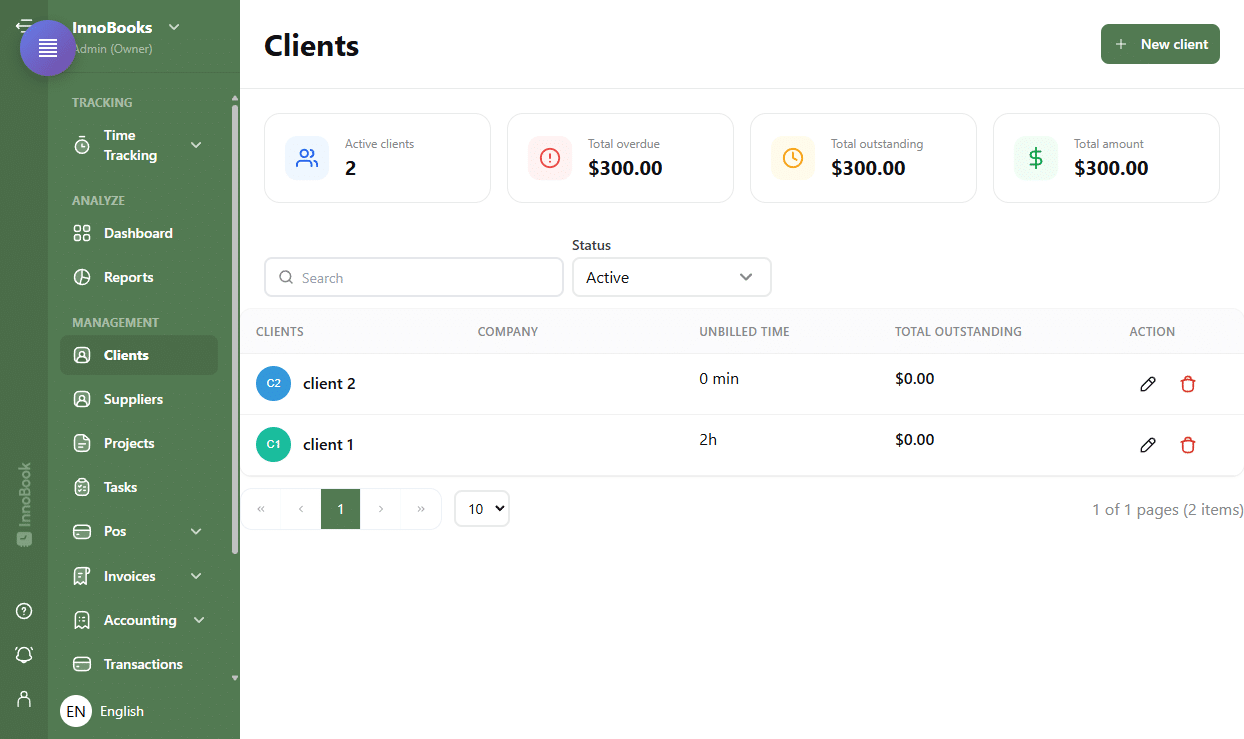
The Clients page with the four summary tiles and the green New client button at the top right. - Create a new client
Click
New clientat the top right. TheAdd New a Clientwindow opens. - Fill in the client record
Enter the
Client name(required), then the other useful fields:First name,Last name,Email,Phone number(with itsPost),Business PhoneandMobile Phone Number. Choose theCountry, then complete the address:Address Line 1,Address Line 2,Town/City,State/ProvinceandPostal Code. ANotesfield lets you add a comment. ClickSave. - Find and filter your clients
Use the search bar to find a client by name. The
Statusfilter showsActiveorInactiveclients. The table shows theClients,Company,Unbilled TimeandTotal outstandingcolumns; click a header to sort. - Open the detail page
Click a client’s name to open its detail page. The
Profiletab showsGeneral information(Business name, Contact, Email, Phone, Address) and the client’sStatus. Depending on your permissions, theInfrastructure,ProceduresandNotestabs are also available. TheEditbutton at the top right reopens the form. - Document infrastructure and procedures (Optional)
In the
Infrastructuretab, addServers,CertificatesandAccesses(referencedvia Vaultwarden) using the+ Addand+buttons. TheProcedurestab lets you add runbooks with+ New procedure, and theNotestab lets you write a note thenPublishit. No password is stored in InnoBook: the Accesses section only keeps a reference to Vaultwarden.

Tips & edge cases
- The
Client nameis the only required field; if it already exists, InnoBooks shows the warning “A client with this name already exists” but still lets you save. - The
Statusfilter hides inactive clients by default. To find an old client, switch the filter toInactive. - The
Infrastructure,ProceduresandNotestabs only appear if your role has the matching read permission — so they may be missing for some users. - The
Accessessection never stores a password: it only keeps aVaultwardenlink or ID. - The
Unbilled Timecolumn reminds you of logged hours that haven’t been invoiced to that client yet.
Frequently asked questions
Which field is required to create a client?
Only the Client name is required to save a record. The other fields (email, phones, address, notes) are optional, but an email is useful if you plan to send invoices to that client.
How do I find an inactive client?
By default the list shows active clients. Open the Status filter and choose Inactive to display deactivated clients, then use the search by name.
Are access passwords stored in InnoBooks?
No. In the Infrastructure tab, the Accesses section only keeps a reference (link or ID) to Vaultwarden. The message “No password is stored in InnoBook” appears below the list as a reminder.
How do I edit or delete a client?
In the list, use the actions at the end of the row to edit or delete a client (depending on your permissions). You can also open the detail page and click Edit at the top right.