

The supplier directory holds the businesses you buy from. It’s where you save their contact details and number, attach each supplier’s taxes (such as GST at 5% and QST at 9.975% in Quebec), then review the
Supplier Taxesreport that summarizes them. Here’s how to keep this directory up to date.
What you’ll need
- A business selected in InnoBooks (if none is chosen, InnoBooks prompts you to pick one first).
- Permission to create suppliers (the
New supplierbutton) and, to edit or delete, the matching permissions. - The supplier’s contact details: at a minimum its
NameandNumber, both required. - The supplier’s tax numbers if you want to record them (GST 5% and QST 9.975% for Quebec).
Steps
- Open the Suppliers page
From the menu, open the
Supplierspage. A tile shows the number ofActive suppliers, and two buttons sit at the top right:Supplier TaxesandNew supplier.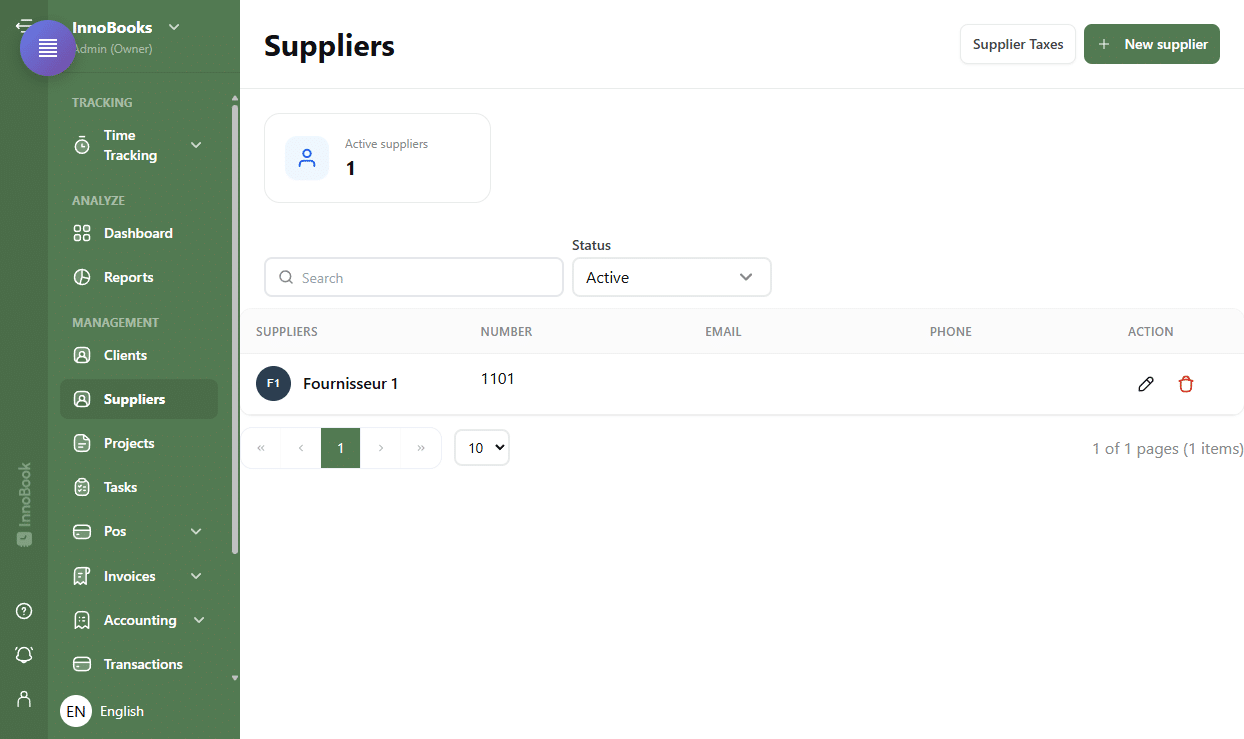
The Suppliers page with the Active suppliers tile and the Supplier Taxes and New supplier buttons. - Add a supplier
Click
New supplierat the top right. TheAdd supplierwindow opens. - Fill in the contact details
Enter the
NameandNumber(required), then theEmail, thePhone number(with itsPost), theBusiness Phoneand theMobile Phone Number. Choose theCountryand complete the address:Address Line 1,Address Line 2,Town/City,State/ProvinceandPostal Code. ANotesfield lets you add a comment. - Add the supplier’s taxes
In the
Taxessection of the form, clickAdd another taxto create a line. For each line, fill in theTax name(for example GST or QST), theRate (%)(5 for GST, 9.975 for QST) and theTax number. Tick the checkbox on the left to mark a tax as active — you can activate up to two. Then clickSave. - Find and filter your suppliers
Use the search bar to find a supplier. The
Statusfilter showsActiveorInactivesuppliers. The table shows theSuppliers,Number,EmailandPhonecolumns; the actions at the end of each row let you edit or delete a supplier. - Review the Supplier Taxes report (Optional)
From the list, click
Supplier Taxes. The report shows, for each supplier, theSupplier,Tax Name,PercentageandTax Numbercolumns. Suppliers with no tax appear with theNo taxlabel. You can export the report with theCSVandPDFbuttons.

Tips & edge cases
- The
NameandNumberare required. If the name already exists, InnoBooks refuses to save and shows an error message. - You can mark at most two taxes as active per supplier (typically GST and QST); ticking a third automatically deactivates the oldest one.
- Deleting a tax that’s already saved
deactivatesit for all items in the company, not just for this supplier — InnoBooks asks for confirmation first. - The
Statusfilter hides inactive suppliers by default; switch it toInactiveto find them. - The
Supplier Taxesreport exports toCSVorPDFfor your bookkeeping.
Frequently asked questions
How do I record a supplier’s GST and QST?
In the supplier form, Taxes section, click Add another tax, enter the Tax name, the Rate (%) (5 for GST, 9.975 for QST) and the Tax number, then tick the checkbox to activate it. You can activate up to two taxes.
Which fields are required to create a supplier?
The Name and Number are required. The other fields (email, phones, address, notes, taxes) are optional.
Where can I see all my suppliers’ taxes at once?
Click Supplier Taxes from the list. The report groups each supplier with its tax, its Percentage and its Tax Number, and flags those with No tax. It exports to CSV or PDF.
What happens if I delete a tax?
Deleting an existing tax deactivates it for all items in the company; items that use it keep it in read-only mode. InnoBooks shows a confirmation before applying this change.