

Recording your suppliers’ tax numbers (their GST and QST registration numbers) keeps a clear record of who charges you tax and lets you find them fast in the
Supplier Taxesreport. Tax numbers are entered directly on the supplier’s record. Here’s how.
What you’ll need
- A supplier already saved in InnoBooks (the
Supplierspage). - Your supplier’s tax registration numbers (GST and QST numbers, shown on their invoices).
- Permission to create or edit suppliers.
Steps
- Open the supplier’s record
From the menu, open the
Supplierspage. For a new supplier, clickNew supplierat the top right. For an existing one, click theEdit(pencil) icon on its row. TheAdd supplier(orEdit supplier) window opens.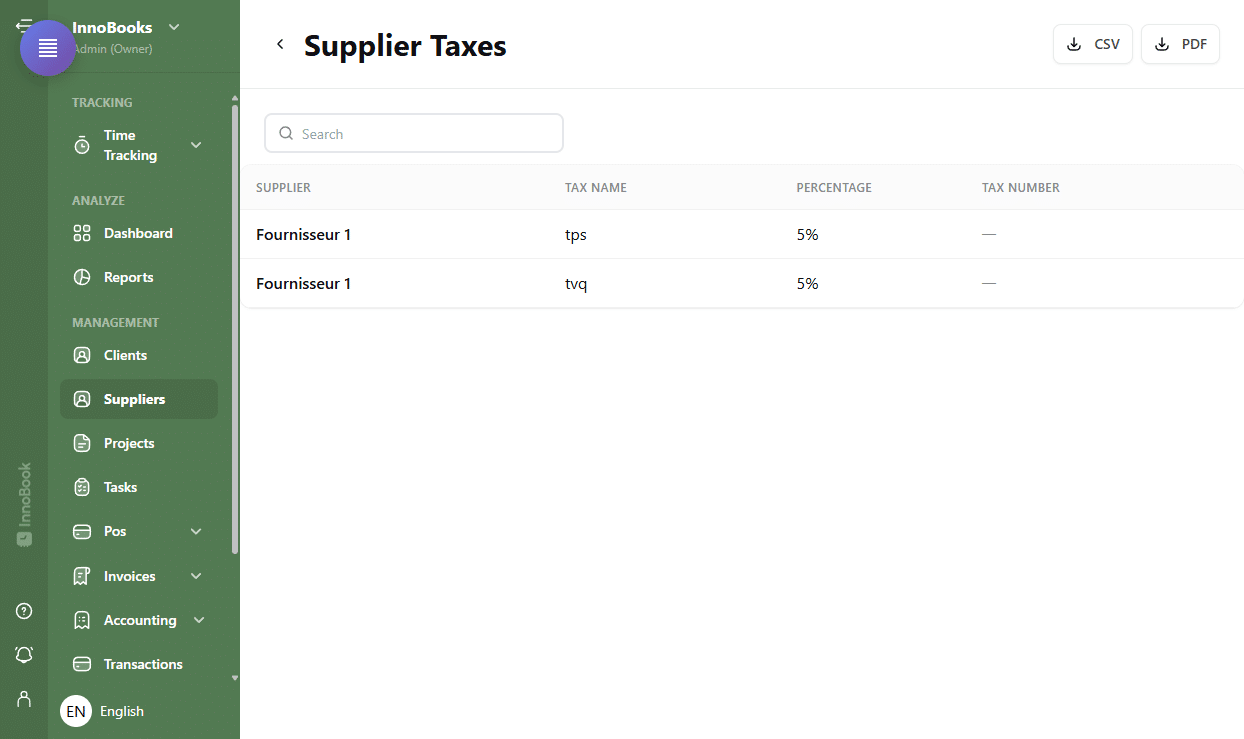
The Suppliers page with the Supplier Taxes and New supplier buttons at the top right. - Go to the Taxes section
Fill in the basic details first (
NameandNumberare required). Then scroll down to theTaxessection at the bottom of the form and clickAdd another taxto add a tax line. - Enter the tax and its number
On the line, tick the checkbox to activate the tax, then fill in the
Tax name(for example GST), theRate (%)(5 for GST) and theTax number— the supplier’s registration number. Add a second line for QST at 9.975% with its own number. You can mark up to two active taxes per supplier. - Save the supplier
Click
Saveat the bottom of the window. The taxes and their numbers are saved to the supplier’s record right away, with no extra confirmation step. - Check the Supplier Taxes report
Back on the
Supplierspage, clickSupplier Taxesat the top right. The report shows one row per tax with the columnsSupplier,Tax Name,PercentageandTax Number. Suppliers with no tax are flagged in orange withNo tax. Use the search box to filter, or theCSVandPDFbuttons to export the list.

Tips & edge cases
- For a Quebec supplier, record two taxes: GST (5%) with its GST number, and QST (9.975%) with its QST number.
- Tax numbers must be unique. If you enter the same number twice, InnoBooks shows a warning and won’t save until the duplicate is fixed.
- Removing a saved tax
deactivatesit for that supplier rather than deleting it: past expenses that use it keep it. - The
Supplier Taxesreport lists active suppliers only — handy for spotting at a glance which ones are missing a number.
Frequently asked questions
Where do I enter a supplier’s tax number?
On the supplier’s record, in the Taxes section. Add a line with Add another tax, then fill in the Tax name, Rate (%) and Tax number. The Supplier Taxes report only displays these values; it isn’t where you edit them.
How many taxes can I record per supplier?
You can add several lines but mark up to two active at once — which matches GST and QST for a Quebec supplier.
Why does a supplier show “No tax”?
Because no active tax has been recorded on its record yet. Open the record, add GST and QST with their numbers, then save: the orange No tax flag disappears from the report.