

Two-factor authentication (2FA) adds a second check to your sign-in. By default, InnoBooks uses email verification; you can switch to an authenticator app, then keep recovery codes and manage your trusted devices. Here’s how to set it all up.
What you’ll need
- An InnoBooks account and your current password.
- An authenticator app on your phone (Google Authenticator, Authy, etc.).
- A safe place to store your recovery codes.
Steps
- Open the Security page
Open your profile page, find the
Securitysection and clickManage. TheSecuritypage shows yourCurrent method:Email Verification(aDefaulttag) if you haven’t changed anything yet.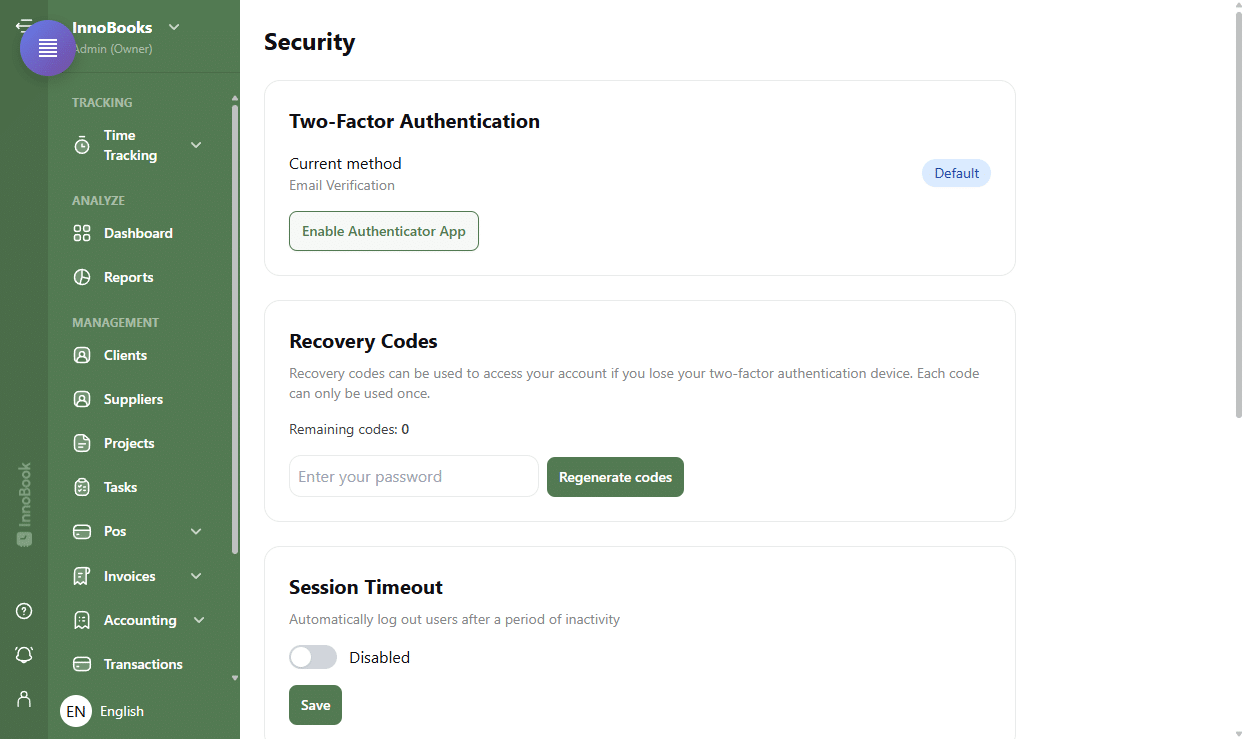
The Security page with the Two-Factor Authentication section and the Current method. - Enable the authenticator app
Click
Enable Authenticator App. UnderSet up Authenticator App, scan the QR code with your app (“Scan this QR code with your authenticator app (Google Authenticator, Authy, etc.)”). If you can’t scan, use the key shown underOr enter this key manually:. - Verify the 6-digit code
In the
Enter the 6-digit code from your appfield, type the code shown by your app, then clickVerify. TheCurrent methodthen changes toAuthenticator App(anActivetag). - Save your recovery codes
After enabling, InnoBooks shows your
Recovery Codeswith the warning “Save these codes now! They will not be shown again.” ClickCopyorDownloadto keep them, thenI've saved them. The number ofRemaining codesis shown in this section. - Set the session timeout
In the
Session Timeoutsection, turn on the switch (Enabled/Disabled) then enter a duration inminutes(between 5 and 480). ClickSaveto be logged out automatically after that period of inactivity. - Manage your trusted devices (Optional)
The
Trusted Devicessection lists the devices allowed to skip two-factor authentication. During sign-in, tickTrust this device for 30 daysto add one. Here, clickRevoketo remove a device, orRevoke Allto remove them all.

Tips & edge cases
- Each recovery code can only be used once. If you run low, enter your password (
Enter your password) and clickRegenerate codes. - To switch back to email verification, click
Disable Authenticatorin theTwo-Factor Authenticationsection. - If you lose your phone, sign in with a recovery code, then regenerate your codes from a safe device.
- Revoke a trusted device as soon as you stop using it (shared computer, sold device): two-factor authentication will be required again at the next sign-in.
Frequently asked questions
How do I enable two-factor authentication in InnoBooks?
Open the Security page (via Manage from your profile), click Enable Authenticator App, scan the QR code with your app, enter the 6-digit code and click Verify.
What are recovery codes for?
They let you access your account if you lose your authentication device. Each code can only be used once. After enabling, click Copy or Download to keep them; you can generate new ones with Regenerate codes.
Can I avoid entering a code at every sign-in?
Yes. During sign-in, tick Trust this device for 30 days. The device then appears under Trusted Devices and skips two-factor authentication for 30 days; you can remove it anytime with Revoke.