

An API key lets your website connect to InnoBooks. You create the key by naming it, copy the
API Keyand theSecret(the secret is shown only once), then paste them into your site’s configuration. You can later rotate, disable or delete the key. Here’s how.
What you’ll need
- Permission to access settings, plus the right to manage keys (create, rotate, delete).
- A website to connect, with a place to enter an API key and secret.
Steps
- Open the API keys page
From the menu, open
Settings, then theWebsite API keyspage. Its subtitle reads: “Keys that let your websites connect to InnoBook (API).” Existing keys appear in a table; if there are none, a message invites you to create one.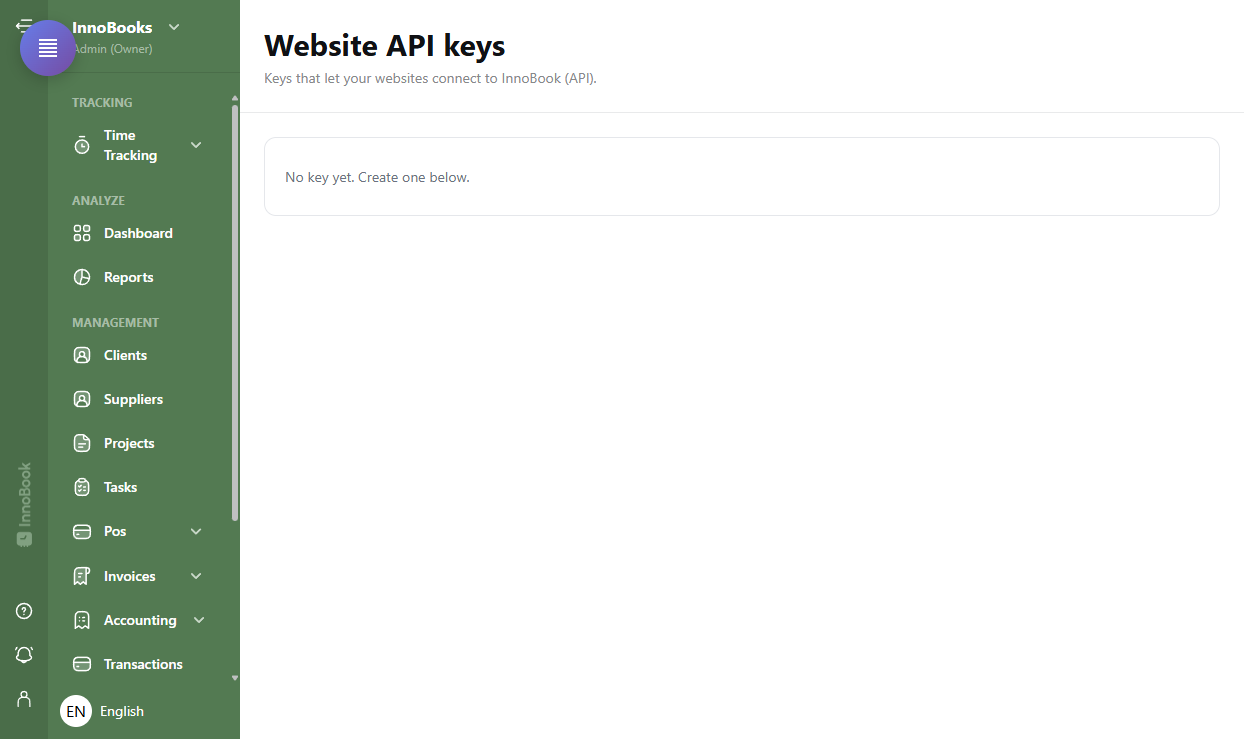
The Website API keys page with the keys table. - Create a key
In the create box, enter a recognizable
Name(for example the site’s name), then clickCreate key. - Copy the API Key and Secret
A box appears with the warning
This is the only time the secret is shown. Copy it now.Copy theAPI Keyand theSecretusing theCopybutton, then clickDone. - Paste the values into your website
Follow the on-screen hint: paste the
API Keyand theSecretinto your site’s configuration (Site configuration → InnoBook API Key / API Secret). - Manage your keys (Optional)
In the table, each key shows its
Name, itsAPI Key, itsStatus(Active/Disabledtoggle) and itsCreateddate. UseRotate secretto generate a new secret, orDeleteto remove the key.

Tips & edge cases
- The
Secretis shown only once, at creation or rotation: copy it immediately and keep it somewhere safe. - Lost or compromised secret? Click
Rotate secret: a new secret is generated and the old one stops working immediately. - To cut a site’s access temporarily without deleting the key, switch the
StatustoDisabled. - Deleting is irreversible: the website using the key will no longer be able to connect.
Frequently asked questions
What if I lost a key’s secret?
Click Rotate secret on the key’s row. A new secret is generated and shown once; the old one stops working immediately. Copy the new one and update your site.
Where do I paste the API Key and Secret?
Into your website’s configuration, in the intended fields (Site configuration → InnoBook API Key / API Secret), as the box reminds you after creation.
How do I disable a key temporarily?
In the Status column, switch the key to Disabled. The site can no longer connect until you set it back to Active, without having to delete it.
What happens if I delete a key?
The website using this key will no longer be able to connect. The action is irreversible; create a new key instead if you need to replace the old one.