

The
Accounts Agingreport shows, at a glance, how much your clients owe you and for how long. Outstanding amounts are split into aging buckets — from 0 to 30 days up to over 90 days — so you can spot which follow-ups to make first. Here’s how to read and export it.
What you’ll need
- Sent invoices that still have an outstanding balance.
- Permission to view reports.
Steps
- Open the report
From the menu, open
Reports, then, underPayment Reports, clickAccounts Aging.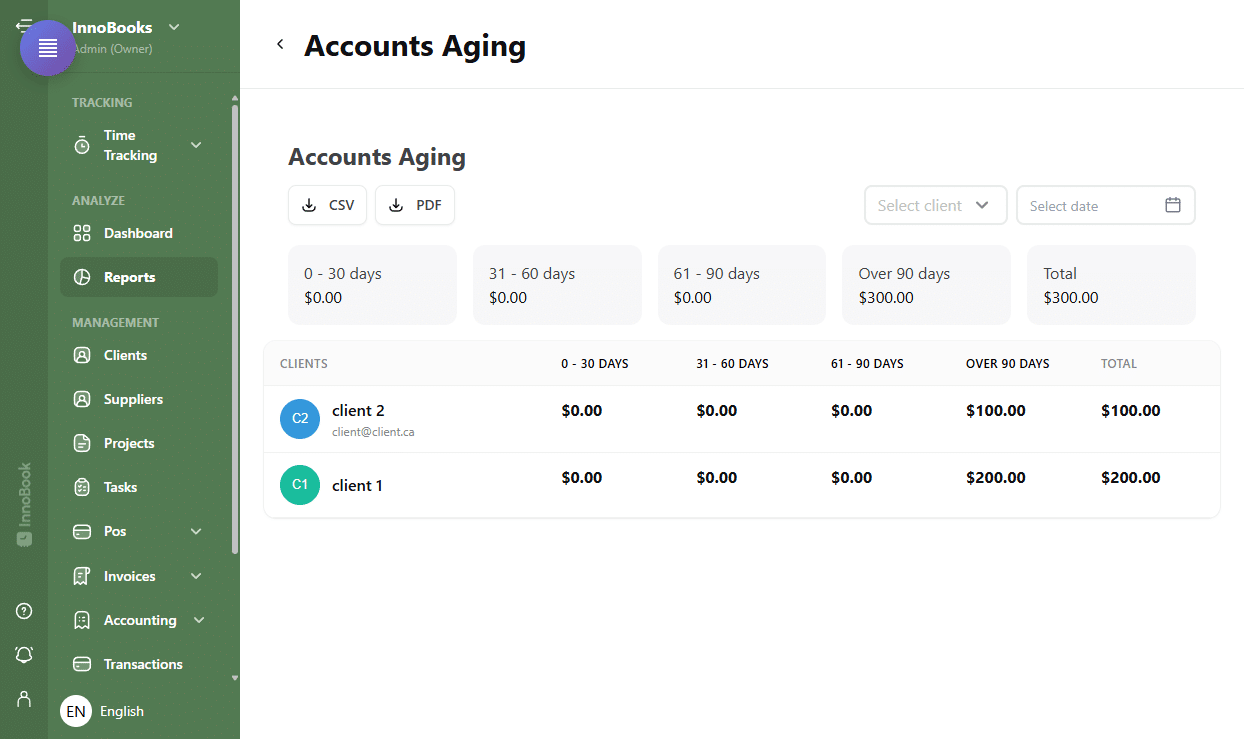
The Reports page with the Payment Reports section and the Accounts Aging tile. - Read the aging buckets
At the top of the report, five totals summarize your receivables:
0 - 30 days,31 - 60 days,61 - 90 days,Over 90 daysand theTotal. The further right an amount sits, the older the invoice — and the higher the priority to chase. - Analyze client by client
The table lists each client with the amount outstanding in each bucket and their
Totalowed. This tells you who to follow up with and for how much. - Filter as needed
Use the client filter to show a single client, and the date field to cut off the calculation at a specific date. A button clears the filters and returns to the full view.
- Export the report
At the top of the report, click
CSVfor a spreadsheet file, orPDFfor a printable version — handy for internal follow-ups or your accountant.

Tips & edge cases
- The chosen date acts as the cut-off date: each invoice’s age is measured against it.
- An invoice in
Over 90 daysis badly overdue — handle it first in your follow-ups. - Filter by client before exporting to prepare a targeted follow-up.
- Cross-check this report against the “Overdue” status on your invoices to prioritize reminders.
Frequently asked questions
What do the 0-30, 31-60, 61-90 and over 90 days buckets mean?
They show how many days an amount has been unpaid. A sum in 0 - 30 days is recent; in Over 90 days, it has been outstanding for more than three months and deserves a priority follow-up.
Can I export the accounts aging report?
Yes. The CSV and PDF buttons at the top of the report download a spreadsheet file and a printable version respectively.
How do I show a single client only?
Use the client filter above the table. The report is then limited to that client’s receivables.
How do I see receivables as of a past date?
Pick that date in the filter’s date field: the aging calculation is cut off at the chosen date.