

To bill the same client at a regular interval — a subscription, a monthly retainer, ongoing fees — create a recurring invoice template. InnoBooks then generates the invoice on each due date and can even send it automatically. Here’s how to set up a template and track the invoices it produces.
What you’ll need
- A client already saved in InnoBooks (with an email address if you want auto-send).
- Your taxes set up (GST 5% and QST 9.975% for Quebec).
- Permission to create recurring invoices.
Steps
- Open the Recurrent Invoices page
From the menu, click
Recurrent Invoices. You land on theTemplatestab. ClickNew Recurrent Invoiceat the top right to open the form.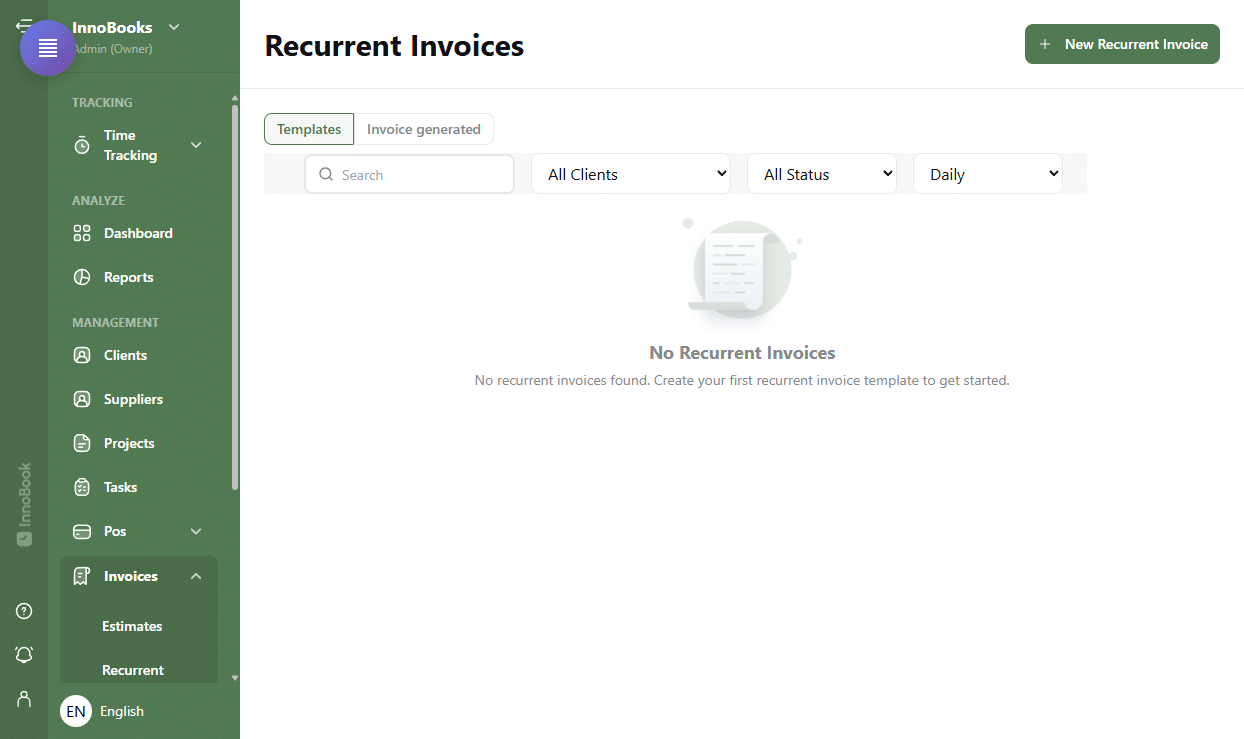
The Recurrent Invoices page with the Templates and Invoice generated tabs, and the New Recurrent Invoice button. - Choose the client and cadence
In the
Sent to Client/Projectfield, select the client. Choose theRecurrence Pattern—Weekly,Bi-Weekly,Monthly,Bi-Monthly,Quarterly,Semi-Annually,AnnuallyorBi-Annually. Set theStart Dateand, if the series ends, theEnd Date(optional). - Name the template and enable auto-send
Enter a
Template Nameso you can spot it in the list, and aDescriptionif useful. TickAuto Send Invoicesso InnoBooks emails each generated invoice to the client without any action from you. - Add line items and taxes
Click
Add New Itemto insert a saved item, orAdd New Lineto type one manually. For each line (Invoice Item,Rate,Quantity,Tax,Line Total), clickAdd Taxesin theTaxcolumn to apply GST and QST. TheSubtotalandAmount Dueare calculated automatically. - Save the template
Click
Save. The template appears in theTemplatestab with itsNext Generationdate, anActivestatus and theGeneratedcounter. - Manage and track (Optional)
On each active template, the actions let you
Generate Invoiceright away,PausethenResume, orCancelthe series. To see the invoices already produced, open theInvoice generatedtab.

Tips & edge cases
Auto Send Invoices: when ticked, every generated invoice is emailed to the client — so the client must have a saved email address.Next Generationshows the date of the next invoice. InEditmode you can adjust theNext Generation Date.- The
Generatedcounter shows how many invoices have been produced (e.g. “3 / 12” if a maximum is set). - Need an invoice now? Use
Generate Invoiceon anActivetemplate without waiting for the due date. - Filter the list by
Client,Status(Active, Paused, Completed, Cancelled) or recurrencePattern, or use search. - Leave the
End Dateempty for an open-ended recurrence.
Frequently asked questions
Which recurrence patterns can I choose?
The Recurrence Pattern field offers: Daily, Weekly, Bi-Weekly, Monthly, Bi-Monthly, Quarterly, Semi-Annually, Annually and Bi-Annually.
Are recurring invoices sent to the client automatically?
Only if you tick Auto Send Invoices on the template. Otherwise InnoBooks creates the invoice but you send it yourself from the generated invoice.
Can I pause a series?
Yes. On an Active template, the Pause action suspends generation; Resume restarts it. You can also Cancel the series for good.
Where do I see the invoices a template has already produced?
In the Invoice generated tab of the Recurrent Invoices page. It lists the number, client, dates, amount and status of each generated invoice.