

InnoBooks lets you create discounts that apply on their own or promo codes your customers type in. You choose a fixed amount or a percentage, on the whole cart or on specific items, with a schedule, usage limits, and even a shareable promotion page. Here’s how.
What you’ll need
- The POS add-on enabled on your business.
- Permission to create and edit discounts.
- Your POS items and categories already created if you want to target specific products.
Steps
- Open the Discounts page
From the menu, open the
Discountspage. Discounts show as cards, split across theAll,Active,InactiveandExpiredtabs. ClickAdd Discountat the top right.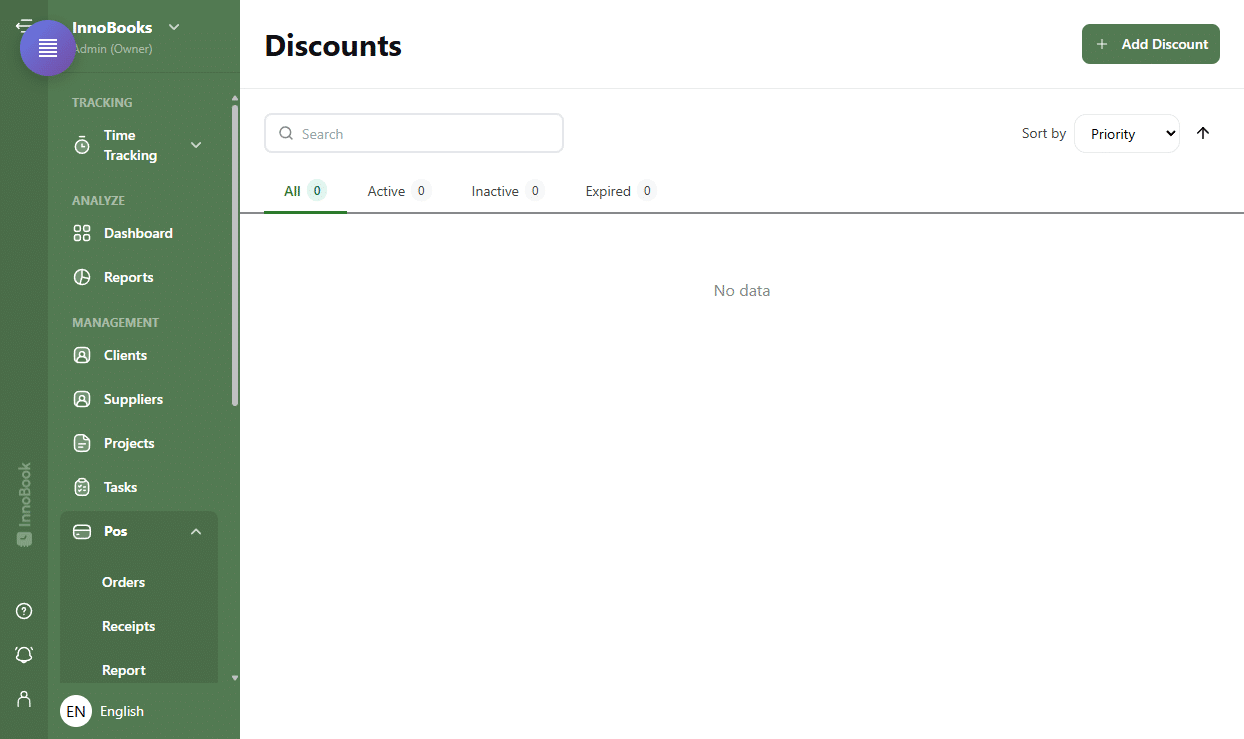
The Discounts page with its tabs, sort control and the Add Discount button. - Fill in the general information
In the
General Informationsection, enter the name and description (in French and English). InPromo Code, type a code for the customer to enter, or leave it empty for an automatic discount. Choose theDiscount Type—Fixed Amount (Cart),Percentage (Cart),Fixed Amount (Item)orPercentage (Item)— then the value (Amountor% of Totaldepending on the type). TickBefore taxto apply the discount before GST (5%) and QST (9.975%) are calculated. - Set the limits and schedule
In
Limits & Schedule, optionally set aMinimum order amountand aMaximum discount amount. Choose theStart date(required) with its hour and minute, and an optionalEnd date. You can also cap usage withTotal usage limitandLimit per customer. - Target the products it applies to
In
Applies to, choose theTarget:All products,Specific itemsorSpecific categories. For the last two, aManage ProductsorManage Categoriesbutton appears to select the exact items. Set thePriorityto break ties between several applicable discounts. - Set the options and save
In
Options, tick as needed:Active(the discount is live),Automatic(applied without a code),Stackable(combinable with other discounts) andExclusive (hidden, requires code)(invisible until the customer enters the code). Then click the save button. - Share the promotion page (Optional)
On the discount card, the external-link icon opens the discount’s public
promotion page, and the copy icon copies its link to the clipboard so you can send it to customers. The pencil and trash icons edit or delete the discount.

Tips & edge cases
- Promo code or automatic: an empty
Promo Codefield combined with theAutomaticoption applies the discount on its own; a filled-in code requires the customer to type it. Before taxapplies the discount to the subtotal before GST and QST; untick it to apply after taxes.- The
Exclusive (hidden, requires code)option hides the discount from the public: it only activates with its code — perfect for a reserved offer. Priorityand theStackableoption determine how several discounts combine or which one wins.- The
All,Active,InactiveandExpiredtabs each show a count; theSort bymenu and the ascending/descending arrow reorder the cards. The usage counter updates live.
Frequently asked questions
Automatic discount or promo code — what’s the difference?
An Automatic discount (no code) applies as soon as its conditions are met. A promo code requires the customer to enter the code from the Promo Code field. Leave the code empty and tick Automatic for a hands-off discount.
Amount or percentage, cart or item?
The Discount Type combines both dimensions: Fixed Amount (Cart), Percentage (Cart), Fixed Amount (Item) or Percentage (Item). “Cart” reduces the order total; “item” reduces the price of the targeted items.
How do I limit a discount to certain products?
In Applies to, set the Target to Specific items or Specific categories, then use Manage Products or Manage Categories to pick the exact items.
Is the discount calculated before or after taxes?
You decide with the Before tax checkbox: ticked, the discount applies to the subtotal before GST (5%) and QST (9.975%); unticked, it applies after.
How do I share a promotion with my customers?
On the discount card, the external-link icon opens the public promotion page and the copy icon copies its link. Paste that link into an email, a message or your social channels.