

POS categories group your items so your staff can find them fast at the till and your customers can navigate them in the mobile app. Each category has a French and an English name, an emoji icon, and a display order you control by drag-and-drop. Here’s how to create and organize them.
What you’ll need
- The POS add-on enabled on your business.
- Permission to create and edit POS categories.
- A rough idea of your menu structure (for example: Starters, Mains, Drinks, Desserts).
Steps
- Open the POS Category page
From the menu, open the
POS Categorypage. It lists your categories with theirIcon,Name (fr)andName (en), theirTab mobile appand theirStatus. ClickAdd POS Categoryat the top right.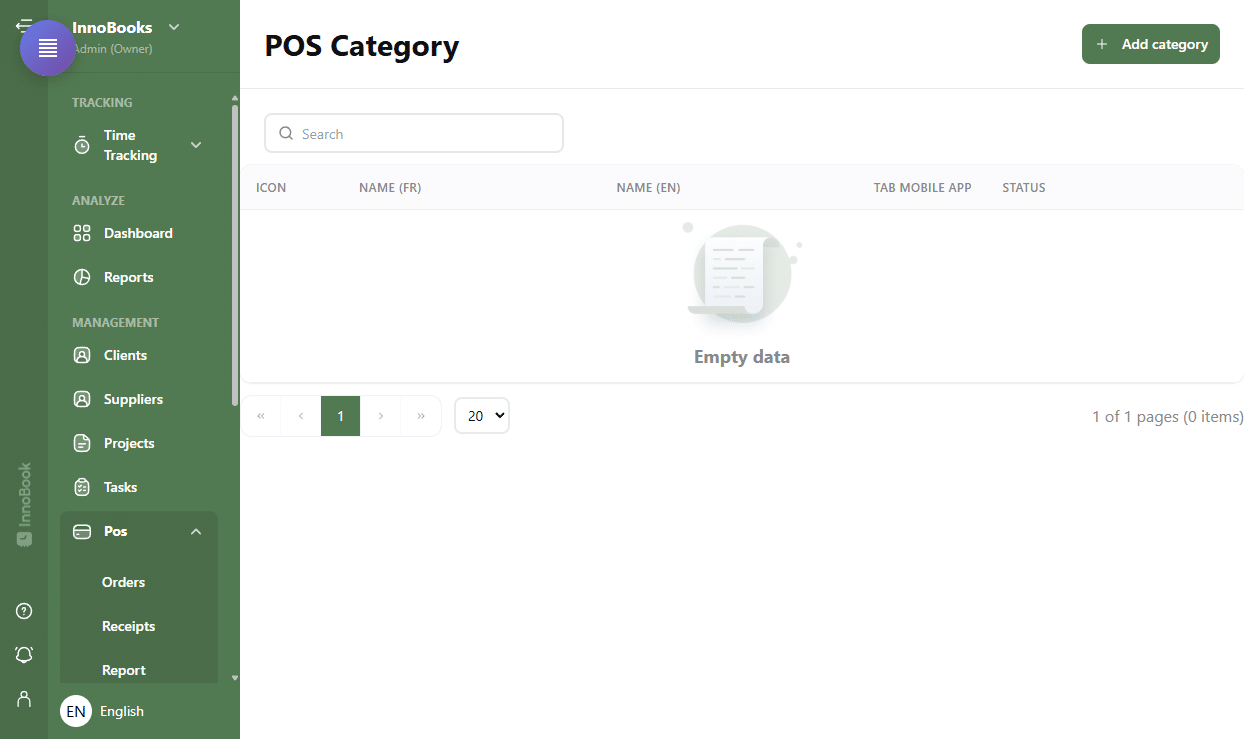
The POS Category page with the search bar and the Add POS Category button. - Name the category in French and English
In the
Add POS Categorywindow, fill in theName (en)andName (fr)fields. Both names are required: the save button stays disabled until they’re filled in. - Choose the mobile-app tabs
In
Tab in mobile app, select the tab(s) where the category should appear for your customers:Pickup,DeliveryorMarket. You can tick more than one. - Add an icon and activate the category
Pick an icon with the
Icon (emoji)picker — it shows next to the name in lists and at the till. Leave theActivecheckbox ticked so the category is visible, then confirm. The new category appears in the list. - Reorder, edit or delete (Optional)
Reorder the display sequence by dragging a row up or down in the list. To adjust a category, use the pencil icon (Edit); to remove it, the trash icon (Delete), then confirm. Use the search bar to find a category quickly.

Tips & edge cases
- Both names (fr and en) are required: you can’t save a single-language category.
- The order of categories in the list sets their display order; drag and drop to change it — no manual save needed.
- An
Inactivecategory stays in your list but no longer shows at the till or in the app — handy for a seasonal item you want to hide without deleting it. - The
Pickup,DeliveryandMarkettabs match the ordering sections of your customers’ mobile app.
Frequently asked questions
Why two name fields?
InnoBooks is bilingual: you enter the name in French (Name (fr)) and English (Name (en)). The right name shows automatically based on the user’s or customer’s language. Both are required.
How do I change the category order?
On the POS Category page, drag a row up or down to reposition it. The new order is saved automatically and is reflected at the till and in the app.
What does “Tab in mobile app” do?
It sets which section(s) of your customers’ mobile app the category appears in: Pickup, Delivery or Market. You can select several.
How do I hide a category without deleting it?
Edit it and untick the Active checkbox. Its Status changes to Inactive: it stays in your list but disappears from the till and the app.