

The
Equipmentmodule helps you list your gear: name, serial number, purchase date, value, location and who it’s assigned to. You can track each item’s status (active, in repair, disposed), link it to an expense and export the list. Here’s how.
What you’ll need
- Permission to view and create equipment.
- Your gear’s details (serial number, purchase date and price, warranty).
- Optional: purchase expenses already recorded, to link equipment to its expense.
Steps
- Open the Equipment page
From the menu, open
Item & Services, thenEquipment. The page shows a summary card (number ofActive Equipment) and the list of your gear.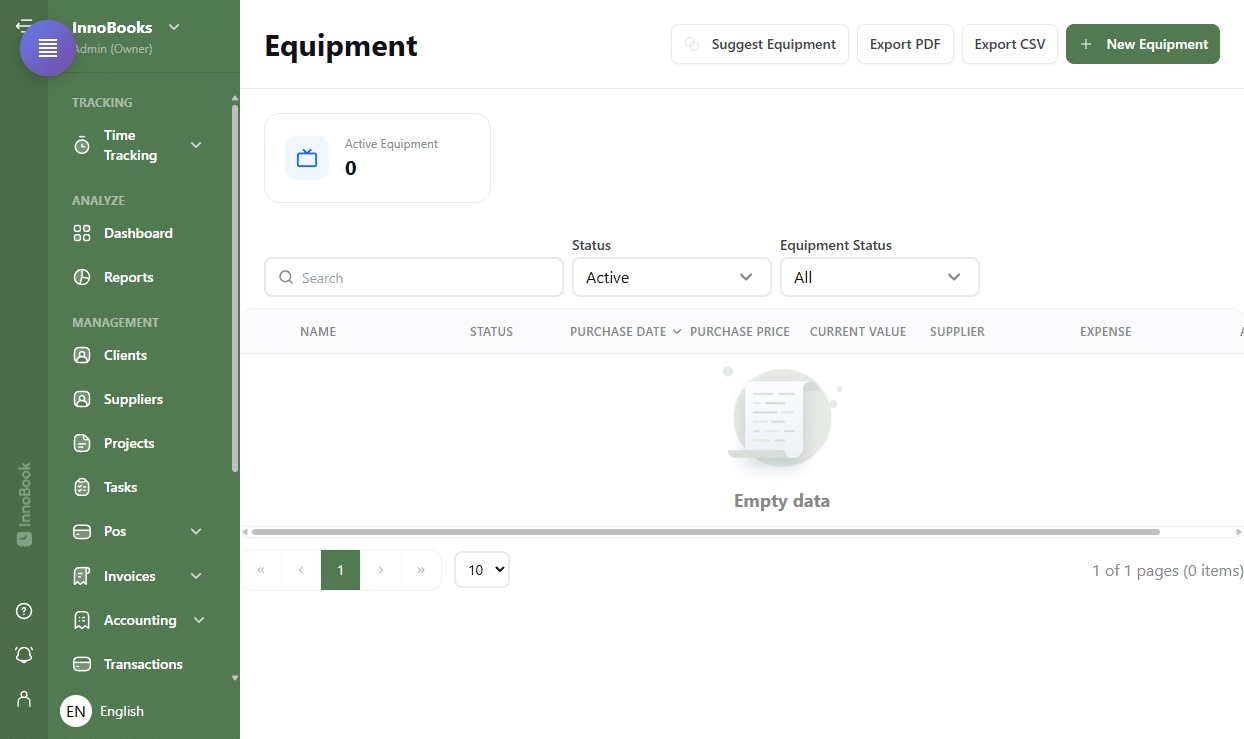
The Equipment page with the summary card and the Suggest Equipment, Export PDF, Export CSV and New Equipment buttons. - Add equipment
Click
New Equipmentat the top right. TheAdd Equipmentwindow opens. TheNameis required. - Fill in the record
Enter the
Name, theSerial Numberand aDescription. Choose theStatus(Active,In RepairorDisposed) and theSupplier. Fill in thePurchase Date,Warranty Expiration,Purchase PriceandCurrent Value. Add theLocation, theAssigned Toperson and aNoteas needed. - Save
Click
Save. The equipment appears in the list with its columns:Name,Status,Purchase Date,Purchase Price,Current ValueandSupplier. Expand a row to see theSerial Number,LocationandAssigned To. - Filter, export and manage
Use the
searchbox and theStatus(active/inactive) andEquipment Statusfilters to find an item. Export the list withExport PDForExport CSV. On each row, theEditaction opens the record andDeleteremoves it. - Suggest equipment from expenses (Optional)
Click
Suggest Equipmentto let InnoBooks propose equipment from your purchase expenses that aren’t linked yet. Select the ones to create, thenAdd as Equipment. In the list, theExpensecolumn then offers aView expenselink to the original expense.

Tips & edge cases
- An orange
Possible duplicatebadge flags equipment that looks like another already present; aDuplicatesfilter then appears to isolate them. - The
Statusshows a coloured badge in theStatuscolumn: green forActive, yellow forIn Repair, red forDisposed. - The list is sorted by
Purchase Date(newest first) by default; click a header to change the sort. - Fill in the
Warranty Expirationto keep track of your gear’s warranty deadlines.
Frequently asked questions
How do I add equipment?
On the Equipment page, click New Equipment, fill in at least the Name then the details (serial number, status, dates, price), and click Save.
Can I link equipment to an expense?
Yes. Use Suggest Equipment to create equipment from your purchase expenses. The Expense column then shows a View expense link to the original expense.
How do I track a device sent for repair?
Open its record with the Edit action and set its Status to In Repair. Its badge turns yellow; set it back to Active once it’s back.