

To build your product catalog in InnoBooks, create an item (a sellable product, with price, stock and taxes) or a service (a billable offering). The form is organized in tabs: you enter the basics and price on the
Informationtab, then assign GST and QST on theTaxestab.
What you’ll need
- An InnoBooks account with permission to create items
- The Point of Sale module enabled if you want to show the POS options and POS category
- Your company taxes configured (GST 5%, QST 9.975%) to assign them
- A product photo (optional)
Steps
- Start the creation
On the
Item & Servicespage, clickCreate New, then chooseCreate new item(a product) orServices(an offering).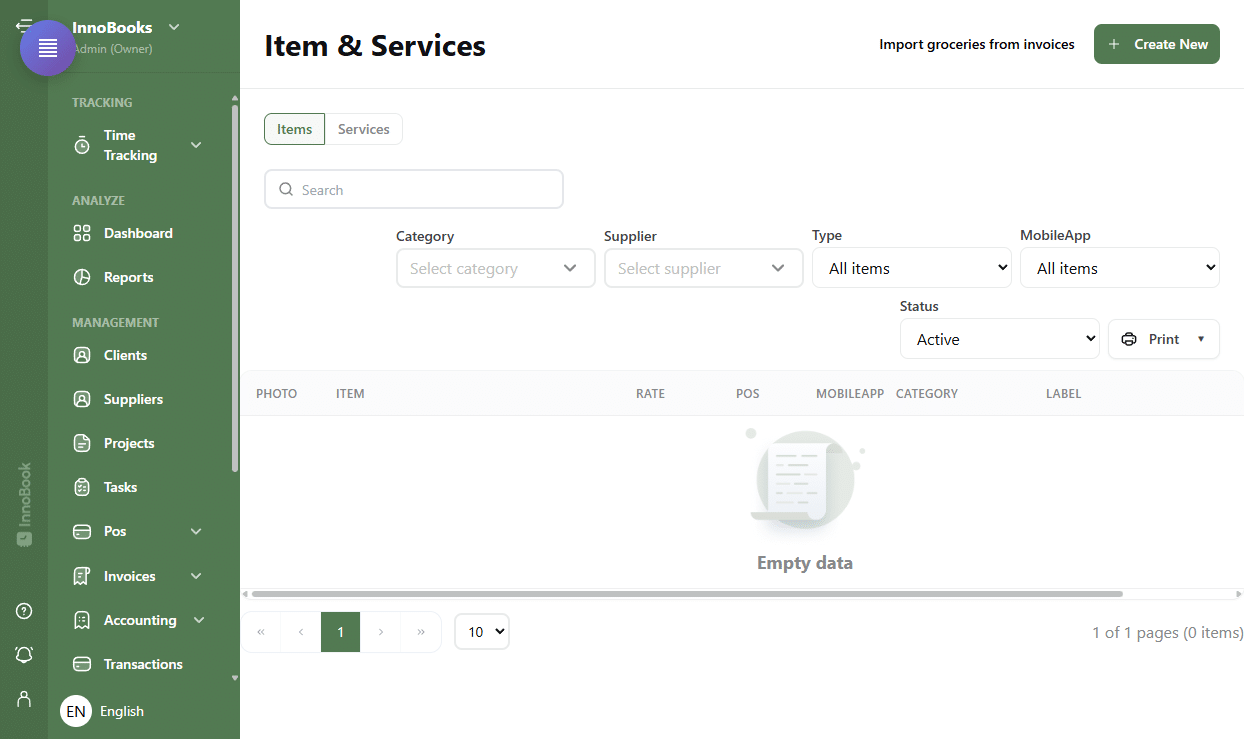
The Create New menu with the Create new item and Services options. - Enter the basic information
On the
Informationtab, add a photo, then fill in theName(required), theDescriptionand thePrice. For an item, also complete thePrice and stocksection:Last buying price,Quantity,MinimumandUnit. - Set display options and POS category (item)
In
Display options, checkShow in POSorShow in MobileAppdepending on your sales channels. You can also enablePrice adjustable,Track inventory (online store)andFeatured (online store). As soon as one of these POS boxes is checked, choose aPOS Category(required). - Assign taxes
Open the
Taxestab. Check the applicable taxes (e.g. GST and QST). CheckTax included in the priceif the price you entered already includes taxes. Missing a tax? UseAdd another taxor theManage taxes in settingslink. - Save
Click
Save. The item or service appears in theItem & Serviceslist.

Tips & edge cases
- An item represents a product (price, stock, taxes, POS options); a service only has a name, description, price and taxes — ideal for billing an offering or time.
- The name must follow Revenu Québec (MEV-WEB) rules: 2 to 128 characters, no disallowed characters.
- The
POS Categorybecomes required as soon asShow in POSorShow in MobileAppis checked. - On the
Taxestab, you can check up to two taxes (e.g. GST 5% and QST 9.975%). - For an item, the
LabelandGallerytabs let you add a barcode/label and extra photos (with the POS module).
Frequently asked questions
What is the difference between an item and a service?
An item is a product, with price, stock, taxes and POS options. A service only has a name, description, price and taxes, and is used to bill an offering or time.
Why is the POS Category required?
As soon as you enable Show in POS or Show in MobileApp, the item must belong to a POS Category to display correctly at the point of sale.
How do I apply GST and QST to an item?
Open the Taxes tab and check the taxes you need (up to two). If a tax is missing, use Add another tax or the Manage taxes in settings link.