

The InnoBooks
Reportspage gathers all your reports in one place, sorted by group. Click the star on a report to pin it: your favorites (up to 6) rise to a strip at the top of the page for one-click access. Favorites are saved to your account, company by company.
What you’ll need
- The
reports.readpermission to open theReportspage. - The
profitability.readpermission if you want to see theProfitability Reportsgroup (hidden otherwise). - Nothing else: favorites are saved automatically to your account, with no setup.
Steps
- Open the Reports page
From the menu, open
Reports. The page opens on theFavorite Reportsstrip at the top, followed by the reports sorted by group. If you have no favorites yet, six greyed placeholder cards invite you to pin some.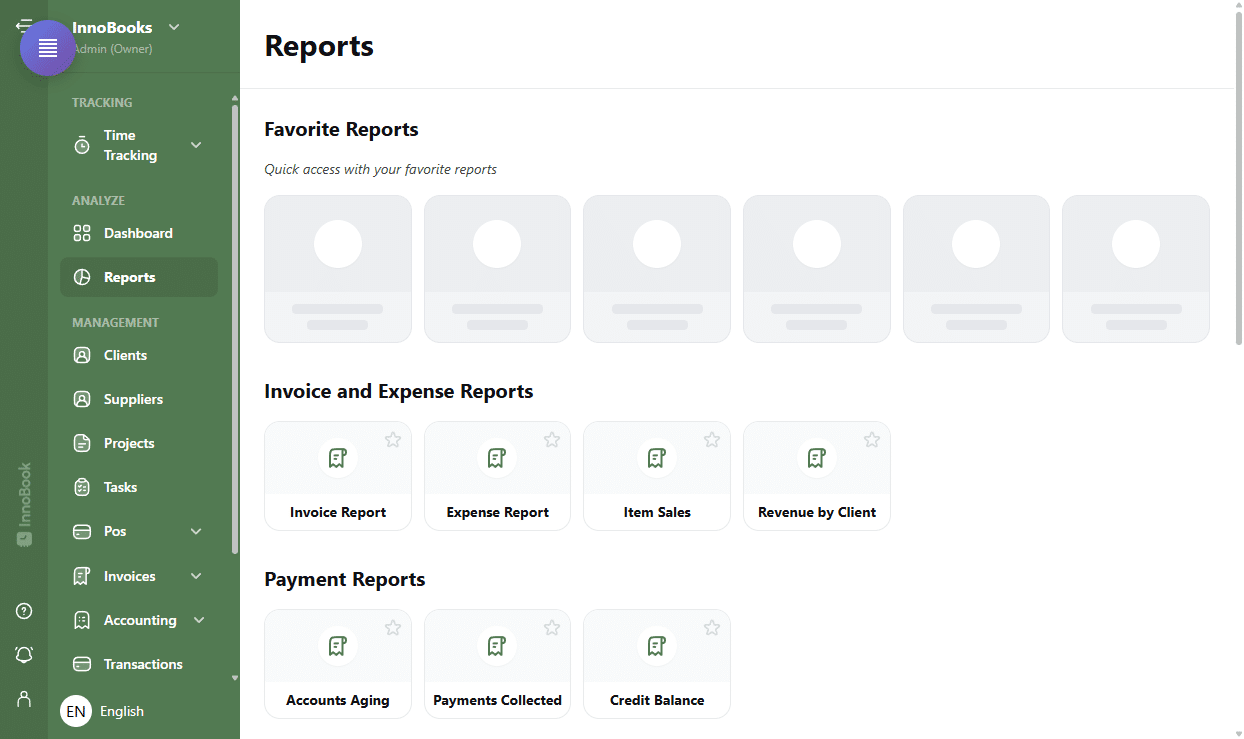
Reports page: Reports title, Favorite Reports strip (empty or filled), then the report groups below. - Browse the report groups
Reports are grouped by theme:
Invoice and Expense Reports(Invoice Report, Expense Report, Item Sales, Revenue by Client),Payment Reports(Accounts Aging, Payments Collected, Credit Balance),Accounting Reports(Results status report),Time Tracking Reports,Profitability ReportsandOther(AI Usage). - Favorite a report
Hover over a card and click the
starin the top-right corner. The star turns amber and the report immediately appears in theFavorite Reportsstrip. The hover label switches fromAdd to favoritestoRemove from favorites. - Remove a favorite
To remove a report, click its star again — in the favorites strip or on its original card. It disappears from the strip. You can pin up to 6 reports: beyond that, InnoBooks shows “You can have a maximum of 6 favorite reports.” and asks you to remove one.
- Show or hide the favorites strip
Once you have at least one favorite, a
Hide/Showbutton appears to the right of theFavorite Reportstitle: it collapses the strip to save space, without deleting your favorites. - Open a report
Click anywhere on a card (in a group or in the favorites strip) to open the matching report. The star stays clickable on its own, without opening the report.

Tips & edge cases
- The maximum is 6 favorites. Remove one before adding a seventh.
- Favorites are saved per user and per company: each person has their own, and switching company shows that company’s favorites.
- The
Profitability Reportsgroup appears only if your role hasprofitability.read. - When no favorite is pinned, six greyed sample cards and the text
Quick access with your favorite reportsshow where they’ll appear. - The star is grey while a report is not a favorite, then amber once pinned.
Frequently asked questions
How many reports can I favorite?
Up to 6. If you try to pin a seventh, InnoBooks shows “You can have a maximum of 6 favorite reports.” Remove an existing favorite first.
Are my favorites shared with the rest of the team?
No. Favorites are specific to each user and each company: your colleagues don’t see yours, and your favorites follow the active company.
Why doesn’t the Profitability group appear?
The Profitability Reports group requires the profitability.read permission. Without it, this group (and its reports) stays hidden on the page.