

InnoBooks gives you two tools to track your MEV-WEB compliance: the
Transmission Dashboard, with its Confirmed / Pending / Failed counters, and theSEV Journal, which records every compliance event. This guide explains how to read them, filter events and export your data.
What you’ll need
- The POS add-on active on your company (the MEV-WEB module depends on it).
- Permission to open the MEV-WEB settings (
settings.mevweb.read) — it also protects the SEV journal. - MEV-WEB configured and at least a few transmissions already made.
Steps
- Open the Transmission Dashboard
In the
MEV-WEB (Revenu Québec)settings, scroll down to theTransmission Dashboard. The four cards show the number ofConfirmed,PendingandFailedtransactions, plus theLast Transmission.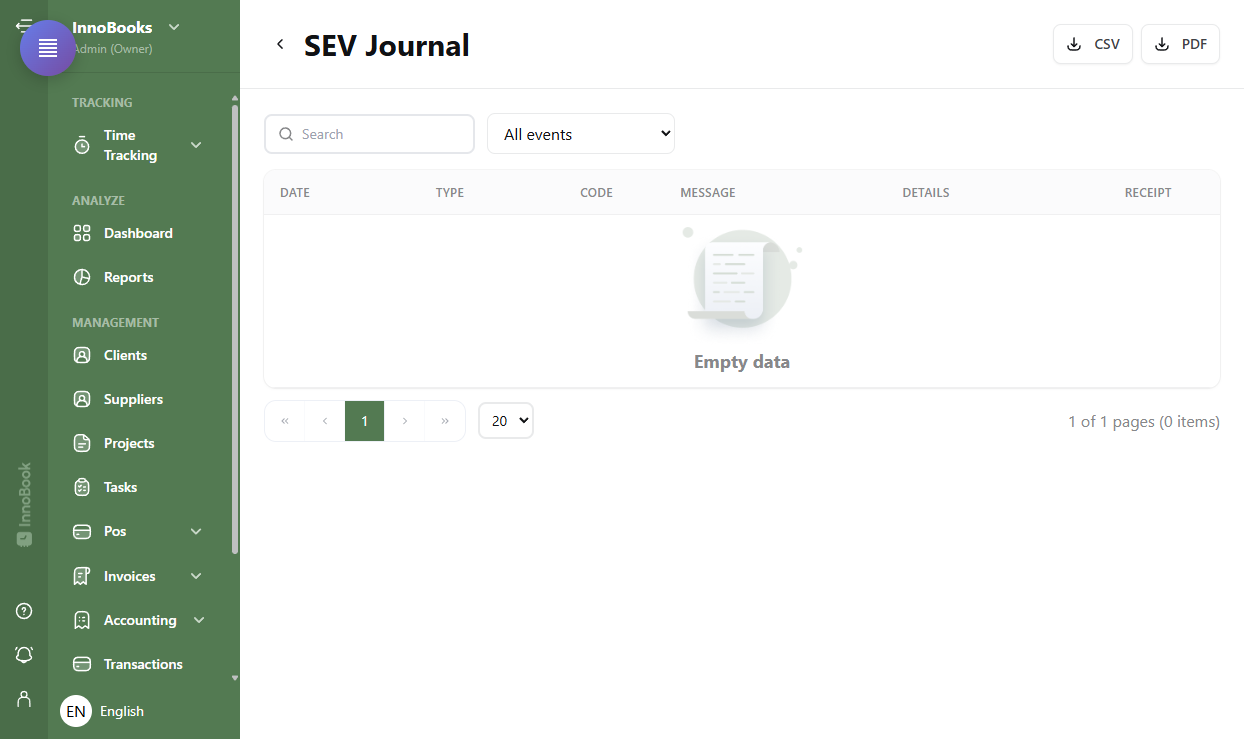
The Confirmed / Pending / Failed cards and Last Transmission. - Retry what’s pending
If the
Pendingcounter is above zero, theRetry pendingbutton appears. Click it to resend the queued transactions. Then review theRecent Transactionslist (receipt number, type, status,Confirmationand anyError). - Open the SEV Journal
Open the
SEV Journalto see the full history of compliance events. Each row shows theDate, the eventType, theCode(error code where applicable), theMessage, theDetailsand theReceiptconcerned. - Filter and search for an event
Use the search box and the
All eventsdropdown to keep only one type: MEV-WEB success, MEV-WEB error, transmission error, cancellation, refund, going offline / back online, item added or removed, price changed. That’s how you quickly trace the cause of a failed transmission. - Export the journal (CSV or PDF)
From the
SEV Journalheader, clickCSVorPDFto download the filtered journal. Handy for your records or to hand a trail to your accountant.

Tips & edge cases
- Two complementary views: the dashboard lives in the MEV-WEB settings (counters + recent transactions); the
SEV Journalis a dedicated page that records all events. - Failed transmission: run
Retry pending, then open the journal to read theCodeandMessagetied to the receipt. - Offline events: going offline and coming back online are logged (offline activated / deactivated), as are cancellations and refunds.
- French labels: the event-type labels in the filter currently display in French in the interface (e.g. “Annulation” for cancellation, “Remboursement” for refund, “Hors ligne activé” for offline activated).
- Receipt column: it shows a shortened identifier; combine it with search to isolate all events for a single receipt.
Frequently asked questions
What’s the difference between the dashboard and the SEV Journal?
The dashboard summarizes transmission status (Confirmed, Pending, Failed, last transmission) and lists recent transactions. The SEV Journal is the full log of compliance events: successes, errors, cancellations, refunds and offline switches.
A transmission stays pending or failed — what should I do?
Click “Retry pending” on the dashboard, then check the SEV Journal for the error code and message. A simple communication problem often clears itself once you’re back online.
Can I keep a copy of the journal?
Yes. Export the SEV Journal as CSV or PDF from its header. The export respects the active filters, so you can extract, for example, only transmission errors.