

InnoBooks can read your receipts for you. To scan a receipt right inside the app, upload a photo or PDF from the expense form: the AI recognizes the supplier, date, amount and taxes, then pre-fills the fields. All you have to do is review, pick a category and save.
What you’ll need
- An InnoBooks account with permission to create expenses
- The receipt or invoice as a file (PDF or image), 5 MB maximum per file
- Your suppliers already saved, for automatic matching (optional)
Steps
- Open the new expense form
Open the
Expensespage, then clickNew Expenseat the top right. The expense form opens.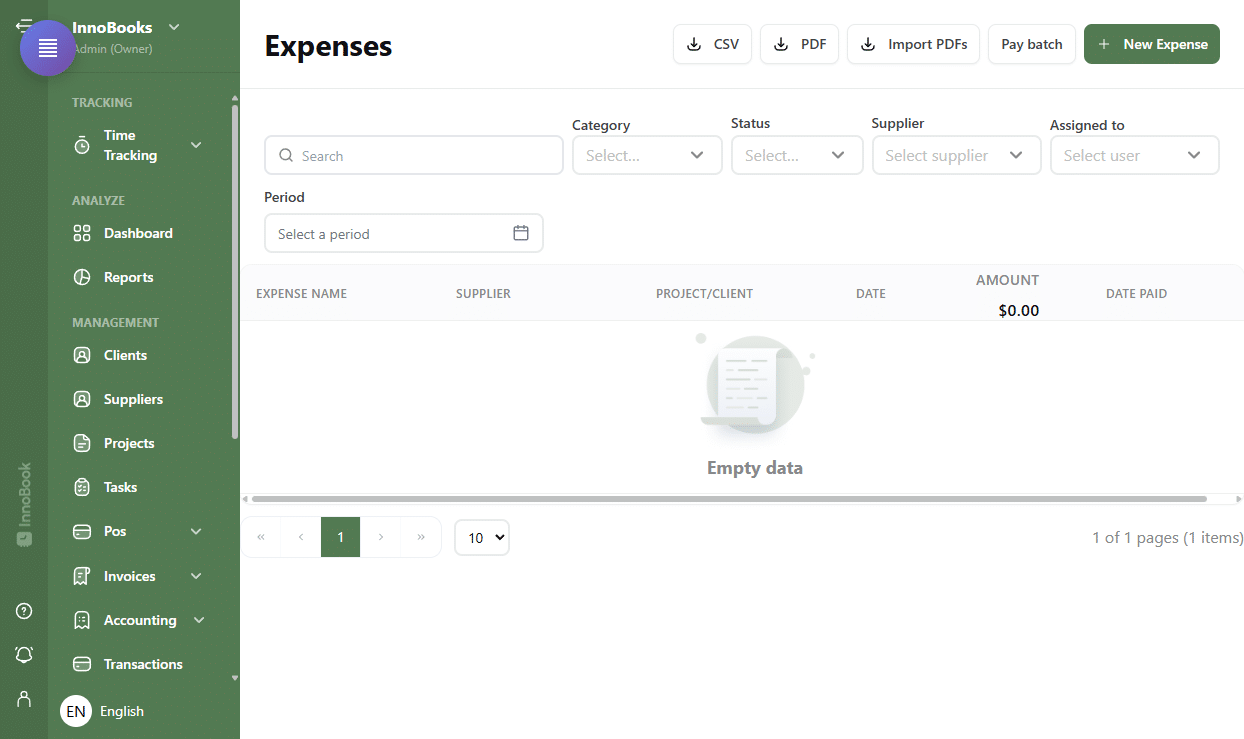
The Expenses page with the New Expense button highlighted. - Upload the receipt
At the bottom of the form, click
Add Attachment, then select the receipt file (PDF or image). Each file is limited to 5 MB. - Let the AI read the receipt
A loading indicator appears while the receipt is analyzed. The AI reads it and automatically pre-fills the
Supplier Name, theDate, the amount and the detected taxes. The analysis cost is shown as a small note (Artificial intelligence cost). - Review the detected lines
If the receipt has itemized lines, the
Scanned line itemssection opens. Each line shows a status:Matched,Suggested,No matchorIgnored. You canConfirma suggestion, link an item,Create itemorIgnorea line, then clickApply linesto turn them into expense lines. - Review, categorize and save
Check the pre-filled fields, select a
Category(required), adjust theDateor supplier if needed, then clickSave. The expense is created with the receipt attached.

Tips & edge cases
- The supplier is auto-filled only when it matches an existing supplier and the field is still empty. Otherwise, pick it (or create it) manually.
- The AI never guesses the category: you must always choose it before saving.
- If the detected currency is US dollars, the warning “The price is in USD” appears — double-check the amount.
- If the line totals don’t match the receipt total, a warning is shown so you can fix it before applying.
- After a scan, a banner may offer
Add Equipmentfrom the invoice — handy for an asset purchase.
Frequently asked questions
Which file formats can I scan?
You can upload a PDF or an image of your receipt, up to 5 MB per file. The AI reads both PDFs and photos.
Does the AI fill in the expense category?
No. The AI pre-fills the supplier, date, amount, taxes and lines, but the Category is required and must be chosen manually before you save.
What if no item matches a receipt line?
The line shows the status No match. You can link it to an existing item, Create item on the spot, or Ignore it — it then stays as a plain, unlinked expense line.