

The Transportation module in InnoBooks makes mileage deduction tracking simple: set your price per kilometer, log each trip (start, end, stops), and InnoBooks calculates the distance and the amount. You can then export everything as CSV or PDF. Here’s the full walkthrough.
What you’ll need
- Permission to access the
Transportationmodule. - Your per-kilometer rates set up in
Transportation Settings. - The start and end addresses of your trips (in Canada).
Steps
- Set up your per-kilometer rates
In
Settings, openTransportation Settings. Enter thePrice per km (< 5000 km)and thePrice per km (≥ 5000 km), then clickSave Changes. These prices apply automatically based on total distance. The page also shows theTotal km recorded this fiscal year.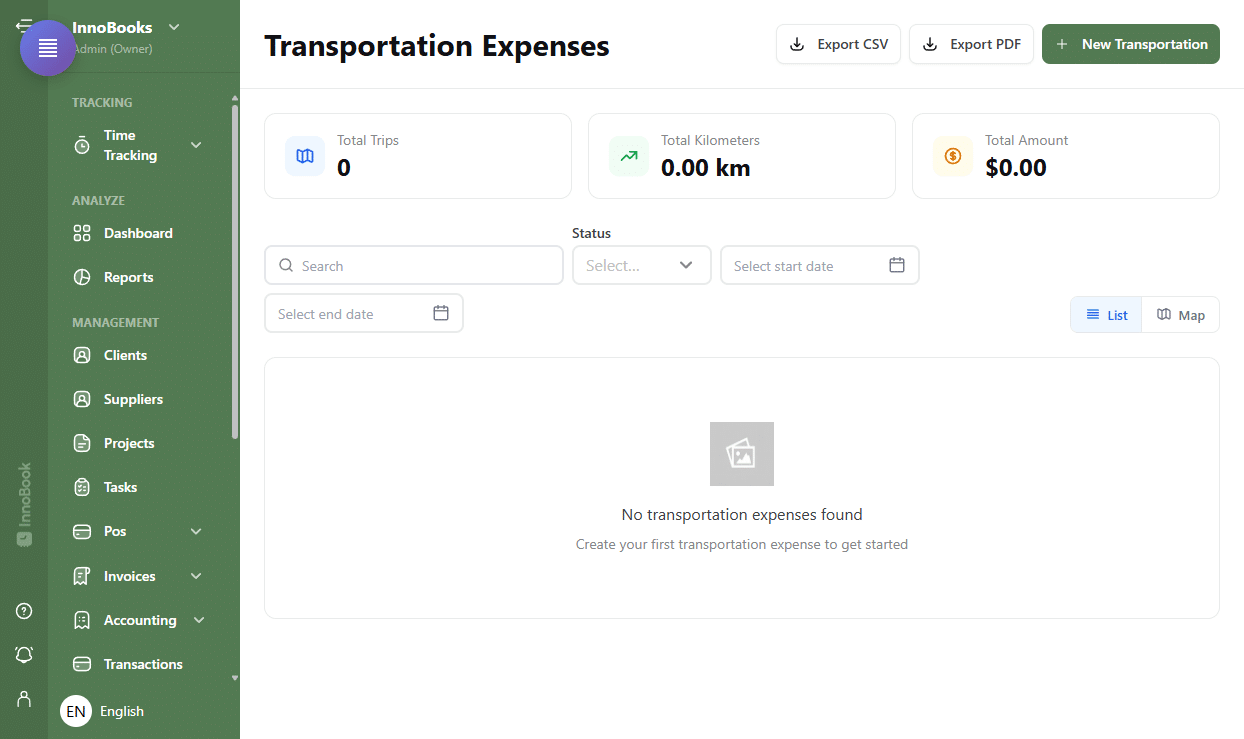
The Transportation Settings page with the Price per km (< 5000 km) and Price per km (≥ 5000 km) fields. - Open the transportation expenses page
From the menu, open
Expenses, thenTransportation. At the top, three cards summarize your data:Total Trips,Total KilometersandTotal Amount. ClickNew Transportationto add a trip. - Enter the route
In the
Routesection, enter theStartand theEnd. UseAdd a stopto insert intermediate stops. The distance is calculated automatically and shown underDistance calculated. You can save frequently used addresses. - Fill in the details
In the
Detailssection, choose theExpense dateand, if needed, thePaid date. Attach the trip to a user throughAssigned toand add aJustification(for example the reason for the trip). - Check the cost and save
In the
Costsection, theTotal KMandPrice per KMare suggested from your settings; adjust them if needed. TheTotal Amountis calculated automatically. ClickSaveto add the trip. - Track and export your trips
Your trips show in
ListorMapview, with aUnbilledorBilledstatus. Each trip’s actions menu lets youEditit,Mark as bill,DuplicateorDeleteit. For your bookkeeping, useExport CSVorExport PDF.

Tips & edge cases
- Two rates exist, under and from 5000 km per fiscal year. InnoBooks automatically applies the right
Price per kmbased on the total accumulated distance. - Addresses are restricted to Canada; save your frequent addresses to reuse them in one click.
- The
Listview shows a mini-map per trip, while theMapview displays one shared map with all routes plus a sidebar list of trips. - The
Total km recorded this fiscal yearshown in settings helps you know which side of the 5000 km threshold you are on.
Frequently asked questions
How does InnoBooks choose the rate under or over 5000 km?
You define two rates in Transportation Settings: Price per km (< 5000 km) and Price per km (≥ 5000 km). InnoBooks automatically applies the rate matching the total distance for the fiscal year.
Can I export my trips for my tax return?
Yes. On the Transportation Expenses page, use Export CSV or Export PDF to get a statement of your trips and mileage.
How do I mark a trip as billed?
Open the trip’s actions menu and choose Mark as bill. Its status changes from Unbilled to Billed (the Mark as unpaid action reverses it).