

In InnoBooks, creating a supplier purchase order takes just a few minutes: start a new order, add items with their supplier, quantity and unit price, then save. The order moves to
Current Orders, where you can receive it and track its status. Here’s the full walkthrough.
What you’ll need
- Permission to access
Purchases. - At least one inventory item, with a supplier and SKU attached.
- A supplier contact (you can create one directly from the form).
Steps
- Open the purchases page
From the menu, open
Expenses, thenPurchases. The page has three tabs:All Purchases,Current OrdersandOrders History.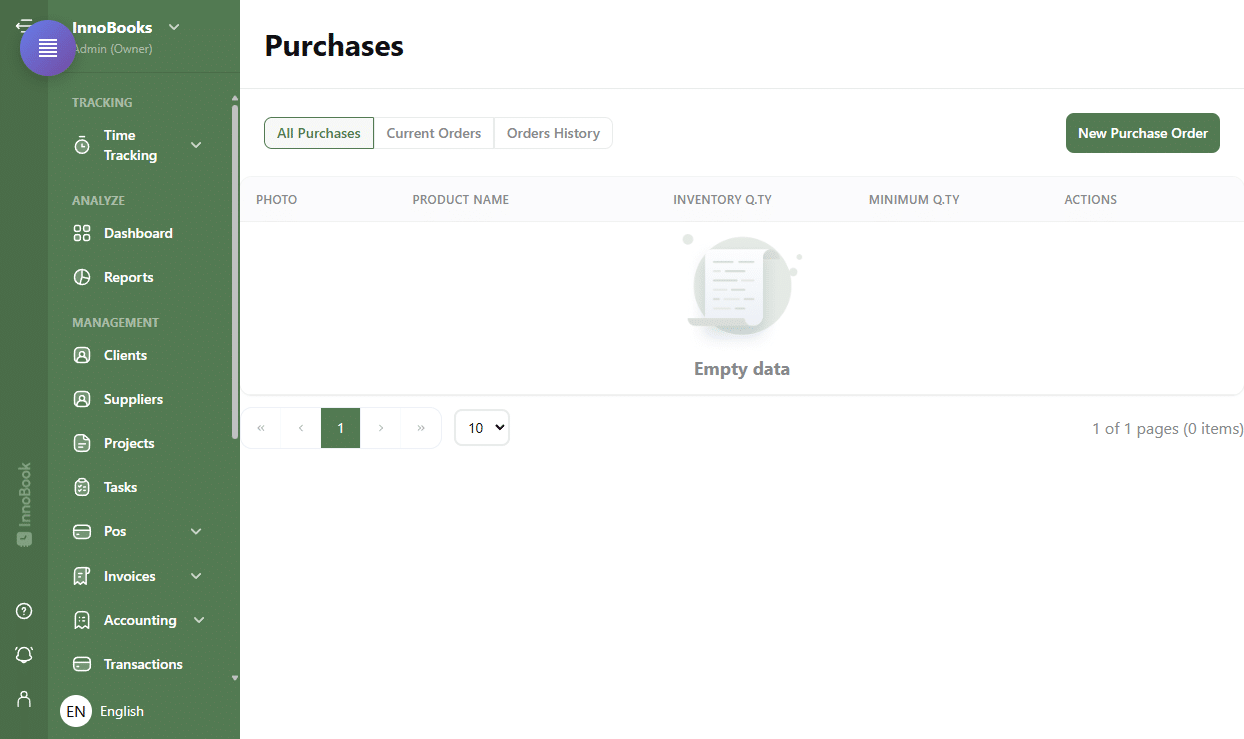
The Purchases page with the All Purchases, Current Orders, Orders History tabs and the New Purchase Order button. - Start a new purchase order
Click
New Purchase Orderat the top right. InnoBooks creates a draft and opens theNew Orderwindow. You can add several items from different suppliers there. - Fill in the dates and contact
Choose the
Expected Ondate and theClose Ondate. In theContactfield, select the supplier (Select contact) or create a new one. The contact’s details appear below the field. - Add the order lines
Under
Purchase Lines, click+ Addfor each product. Select theItem, then theSupplier: theSKUandUnit pricefill in automatically from the supplier record. Enter theQuantityand adjust theUnit priceif needed. - Save the purchase order
Click
Save. The purchase order appears in theCurrent Orderstab with itsOrder No.and status. - Receive the order (Optional)
When the goods arrive, open the
Current Orderstab and clickReceive order. Select the receivedSKU(the window shows theUnit price, theQ.ty Orderedand theQ.ty Remaining), then enter the receivedQuantityand save.

Tips & edge cases
- You can also start an order from the
All Purchasestab: each item shows anAdd to Orderbutton, along with itsInventory Q.tyandMinimum Q.ty. - On a current order, the actions menu offers
EditandReceipt. In edit mode, theStatusfield becomes editable (Draft, Submitted, Partially Received, Fully Received, Closed, Cancelled, Sent). - A single purchase order can hold several lines and several suppliers.
- The
Orders Historytab keeps past orders; theDetailsbutton shows their contents.
Frequently asked questions
How do I receive an order partially?
In the Current Orders tab, click Receive order, choose the SKU and enter the Quantity actually received. The Q.ty Remaining shown tells you what is still to receive.
How do I add a supplier that doesn’t exist yet?
In the form’s Contact field, use the create option to add a new supplier contact without leaving the purchase order.
Does the purchase order include taxes?
The order form captures the Quantity and Unit price per line; it has no separate tax line. Purchase taxes are handled when you record the expense.