

InnoBooks can watch a product’s price at an online supplier for you and show how it moves over time. You add a watch from an expense item (by pasting the product page address), then the
Price Watchpage compares thePaid Price, theCurrent Priceand theLowest Price. The same page also flags recent price increases detected in your own purchases. Here’s how to do it.
What you’ll need
- An expense already saved that contains the item whose price you want to track.
- The web address (URL) of the product page at your online supplier.
- Access to
Expensesin InnoBooks.
Steps
- Open a saved expense that contains the item
A price watch is created from an item on an already-saved expense. Open (or create and save) the expense that contains the item, then find that item’s line. Once the expense is saved, a small
Track Pricebutton (a price-check icon) appears to the right of the item.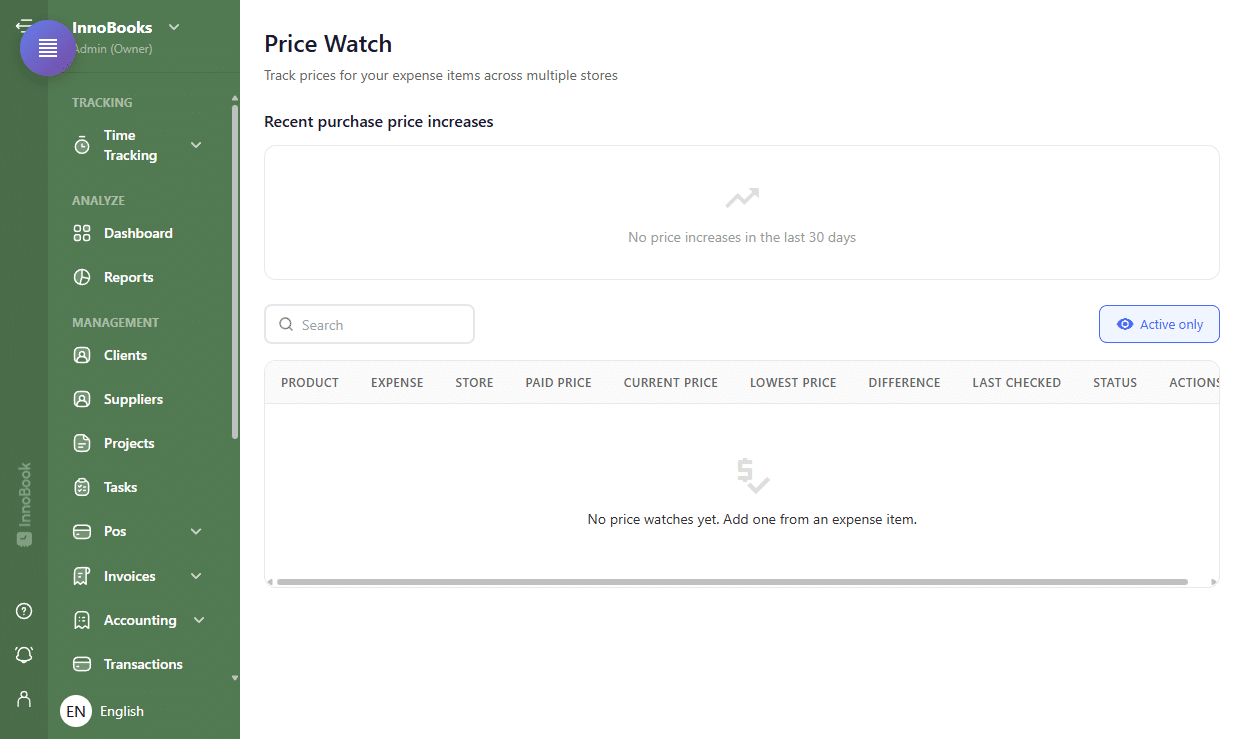
A saved expense item line with the Track Price button on the right. - Start the watch and paste the product address
Click the
Track Pricebutton. InnoBooks asks for theProduct URL: paste the address of the product page at your online supplier, then confirm. - Enter the store (Optional)
InnoBooks then asks for the
Store Name(for example the name of your online supplier). This field is optional: leave it blank to skip it. The alert threshold (Alert when price below) is automatically set to the price you paid. The watch is created and a confirmation message appears. - Open the Price Watch page
From the menu, open
Expenses, thenPrice Watch. The page lists your watches in a table:Product,Expense,Store,Paid Price,Current Price,Lowest Price,Difference,Last CheckedandStatus. Until InnoBooks has checked the price, theCurrent Pricecolumn showsPendingandLast CheckedshowsNever checked— checks run automatically. - Review the detail and history
Click a row to open the detail panel on the right:
Store,Paid Price,Current Price,Lowest Priceand theLinkto the product. ThePrice Historysection lists each check (date and price). If there are none yet, InnoBooks showsNo price history recorded yet. - Pause, resume or delete a watch (Optional)
In the
Actionscolumn, useOpen linkto visit the product page,Pause tracking/Resume trackingto stop or restart the checks, and the trash icon toDelete. TheActive only/Show allbutton filters the list, and the search box helps you find a product.

Tips & edge cases
- The same page shows a
Recent purchase price increasescard: it lists the items whose purchase price rose recently (Before → After,Increase,Date) and theImpacted dishes, based on the prices captured on your own expenses — with no URL to set up. - A price watch can only be created from an already-saved expense: the
Track Pricebutton does not appear until the expense (and its item) is saved. - The alert threshold is taken automatically from the
Paid Pricewhen you create the watch. - The
Differencecolumn shows the gap between the paid price and the current price, as an amount and a percentage: a drop and an increase appear in different colours.
Frequently asked questions
Why does the “Current Price” column show “Pending”?
Because InnoBooks hasn’t checked the product’s price yet. Checks run automatically; until one has happened, Current Price shows Pending and Last Checked shows Never checked. The price and the history fill in after the first check.
How do I stop tracking a product?
On the Price Watch page, in the Actions column: click Pause tracking to stop the checks (the watch stays in the list with an Inactive status) or the trash icon to Delete the watch for good. The Active only / Show all filter lets you see paused watches again.
What’s the difference with the “Recent price increases” card?
The Price Watch compares the price of an online product page, via a URL you paste. The Recent purchase price increases card comes from your own expenses: it spots the items whose purchase price rose from one purchase to the next and the impacted dishes, with no URL to enter.