

With InnoBooks you import a file from your bank (CSV, OFX or QFX), let the software detect the institution, categorize each line, then reconcile debits against your expenses and credits against your invoices. The month-end statement reconciliation finally compares the calculated balance to your bank statement.
What you’ll need
- A file exported from your bank in
CSV,OFXorQFXformat (InnoBooks recognizes Desjardins, RBC, TD, BMO, National Bank, CIBC, Tangerine and Scotiabank; for another bank, it reads the file with a generic format). - At least one bank account saved in the
Accountstab (Checking, Visa, Savings, etc.). - The
bankimport.create(import),bankimport.update(rules) andbankimport.read(read) permissions on your role. - Your expenses and invoices already entered in InnoBooks so reconciliation can find matches.
Steps
- Open Bank Import and create your accounts
From the Accounting menu, open
Bank Import. Go to theAccountstab and clickAdd bank account. Fill inAccount name,Institution,Account type(Checking, Savings, Visa, Mastercard, Line of Credit or Investment),GL Account #andLast 4 digits, then clickAdd.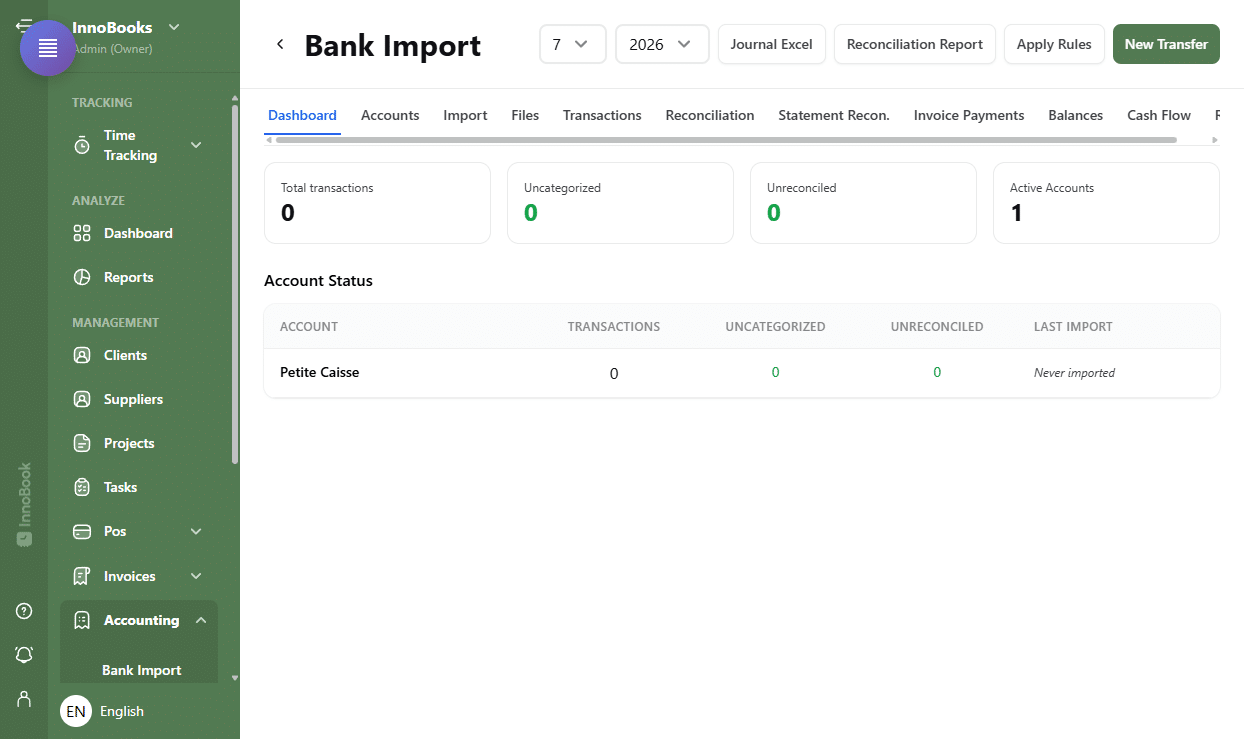
Accounts tab with the “Add bank account” form and the list of existing accounts. - Import a file from your bank
In the
Importtab, clickChoose a fileand select your statement. InnoBooks showsDetecting bank...thenDetected bankwith the transaction count. ConfirmSelect an account, clickPreview, reviewTotal transactions,Duplicatesand theDate range, then clickConfirm Import. To import several files at once, use theFilestab (drag and drop, thenImport selected). - Categorize the transactions
In the
Transactionstab, filter byAll Statusto isolateUncategorizedlines. Assign a GL account, or clickApply Rules(header) to auto-categorize based on your rules. UseCreate Ruleto memorize a category,Taxto compute GST/QST on a debit, andSplitto spread an amount across several accounts. - Reconcile expenses
Open the
Reconciliationtab and clickFind Matches. InnoBooks pairs each bank debit with aMatched Expenseand shows a confidenceScore(green ≥ 80%, yellow ≥ 60%). Check the correct rows then clickConfirm Reconciliation. Forunmatchedlines, useSelect an expense...orAuto-Create Expenses. - Match invoice payments
In the
Invoice Paymentstab, clickDetect Payments: InnoBooks looks for bank credits that match anInvoice(number, client,Outstandingbalance). Check the matches and clickConfirm Paymentsto mark the invoices as paid. - Close the period (statement reconciliation)
In the
Statement Recon.tab, choose theAccount,MonthandYear, then clickLoad. Enter theStatement Balanceand confirm theDifferenceis 0 andPendingis zero: theMark as Reconciledbutton then becomes available. For your records, export theJournal Exceland theReconciliation Report(header, based on the selected month and year).

Tips & edge cases
- Bank detection is automatic: the
Account auto-selectedbanner appears when InnoBooks recognizes the account from the file. - Existing
Duplicatesare detected and skipped on import, so you never count the same transaction twice. - In the
Rulestab,Prioritysets the order of application andPatternis matched against the description text (e.g. “OVH”, “Fizz”). - To move money between two accounts (e.g. bank to petty cash), use
New Transfer: no revenue or expense is created. - A
Splitonly confirms when the total of the lines exactly equals the transaction amount.
Frequently asked questions
Which file formats and banks are supported?
The CSV, OFX and QFX formats are accepted. The software recognizes the institution automatically on import for Desjardins, RBC, TD, BMO, National Bank, CIBC, Tangerine and Scotiabank. For another bank, the file is read with a generic format, without recognizing the institution.
What’s the difference between “Reconciliation” and “Statement Recon.”?
Reconciliation pairs your bank transactions with expenses and invoices in InnoBooks. Statement Recon. validates, for a given month, that the calculated closing balance matches your bank’s Statement Balance.
Can I create an expense from an unmatched transaction?
Yes. In the Reconciliation tab, the Auto-Create Expenses button generates the missing expenses from unmatched bank debits.