

The InnoBooks
Chart of Accountsis the list ofdefault Sage ledger accounts used for journal export. It’s a ready-to-use chart: each account has a general ledger (GL) number, a name, a category and a type. This screen lets you review that chart and understand how your revenue, expenses and taxes will be classified when you export your data to Sage 50 or QuickBooks.
What you’ll need
- The
accounting.readpermission on your role (access to the Accounting module). - No prior data entry: the chart is provided by default and loads automatically.
- Helpful if you plan to use the
Exportpage (Settings) to Sage 50 or QuickBooks.
Steps
- Open the chart of accounts
From the
Accountingmenu, open theChart of Accountstile. The page loads and shows every account, grouped by category. Top-right, aSearch by number or name...box lets you filter the list.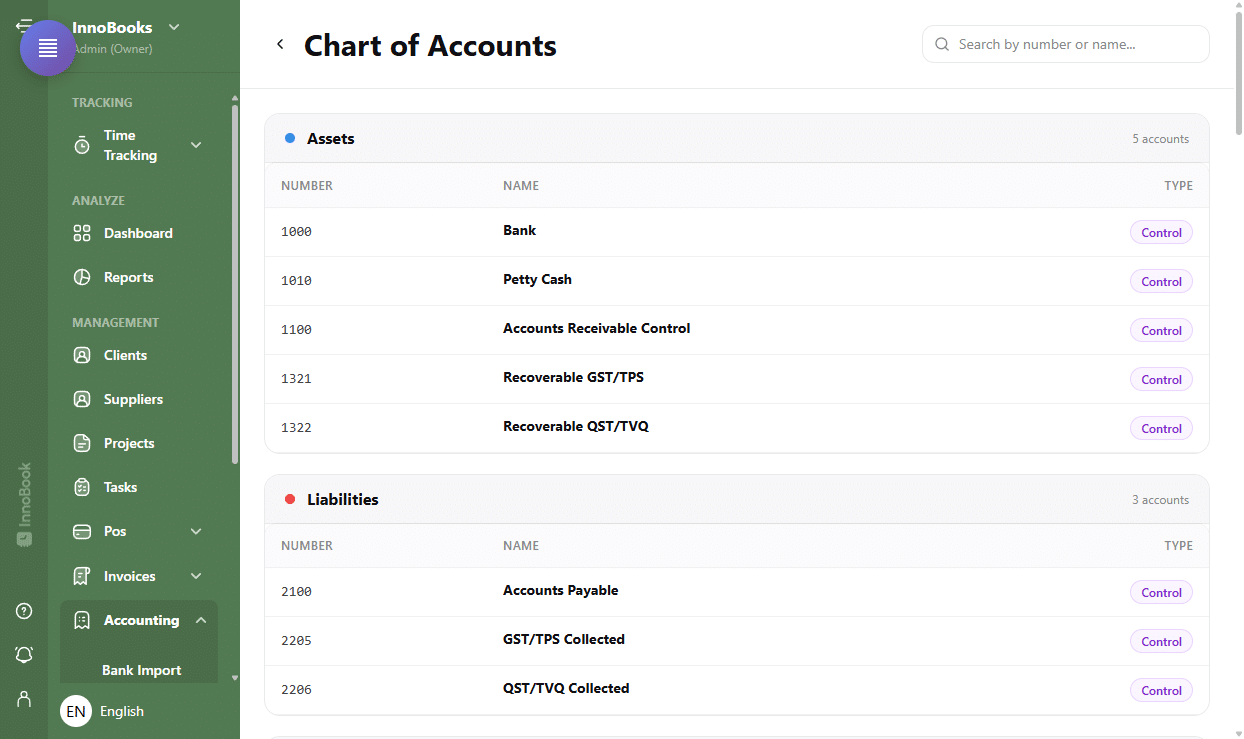
“Chart of Accounts” header with the search box and the account groups by category. - Understand the six categories
Accounts are grouped, in order, into six colour-dotted categories:
Assets,Liabilities,Equity,Revenue,Cost of SalesandOperating Expenses. Each group header shows how manyaccountsit contains. - Read the columns and account types
Each group has three columns:
Number(the GL account number),NameandType. The type is shown as a badge:Control(main roll-up account),Category(intermediate line) orSub-account(detail account, slightly indented). This hierarchy mirrors the structure your accounting software expects. - Search for a specific account
Type a number (for example “40”) or part of the name (for example “tax”) in the search box. The list filters as you type; only groups containing a match stay visible. If nothing matches, InnoBooks shows
No accounts match your search.Clear the box to return to the full list. - Connect it to your exports
This chart is the one InnoBooks uses to classify your entries at export time. The account numbers you see here appear notably in the
Payments (GL)/General ledger journalfile of theSage 50export. Getting familiar with the chart helps you find your accounts once the files are imported into Sage or QuickBooks.

Tips & edge cases
- The chart is a default list provided by InnoBooks: this screen is for reviewing it, not for adding or renaming accounts.
- The dot colour follows the category (Assets, Liabilities, Equity, Revenue, Cost of Sales, Operating Expenses) — handy to spot a line at a glance.
- A
Sub-accountis indented under its parent account: it’s the finest level of detail. - Search matches both the
Numberand theName— you don’t need the exact number.
Frequently asked questions
Can I add or edit an account from this screen?
No. The Chart of Accounts is a default, read-only list: the screen lets you review and search it, but not create, rename or delete accounts. It’s designed to stay aligned with the Sage ledger accounts used at export.
What are the account numbers for?
The Number is the account’s identifier in the ledger. It classifies your entries and appears in the files generated by the Export page (for example the Sage 50 General ledger journal).
What’s the difference between Control, Category and Sub-account?
Control is a main roll-up account, Category an intermediate line, and Sub-account a detail account attached to a parent. Together they form the chart’s hierarchy.