

In InnoBooks you don’t hand-key the debit and credit: every time you record a transaction (invoice, expense, POS sale, payment), the software automatically creates the balanced journal entry behind it. The
Journal Entryreport gathers all of these entries as a read-only view so you can review them, confirm they balance and export them.
What you’ll need
- The
accounting.readpermission on your role (the report lives under the Accounting module). - Transactions already recorded — invoices, expenses, POS sales, payments — since these generate the entries.
- A chart of accounts set up, so each entry line points to the right account.
- Your company’s currency symbol and date format apply automatically.
Steps
- Understand how an entry is created
A journal entry is not typed by hand on this screen: it is produced automatically as soon as you record a transaction elsewhere in InnoBooks (invoicing, expense, POS sale, payment). Transactions imported from your bank are used for reconciliation: they do not create entries. The software then builds the matching balanced entry — one or more debits equal to one or more credits — and adds it to the journal.
“Journal Entry” card in the Accounting menu with its description “All manual journal entries and adjustments made to your books”. - Open the journal entry report
From the Accounting menu, click the
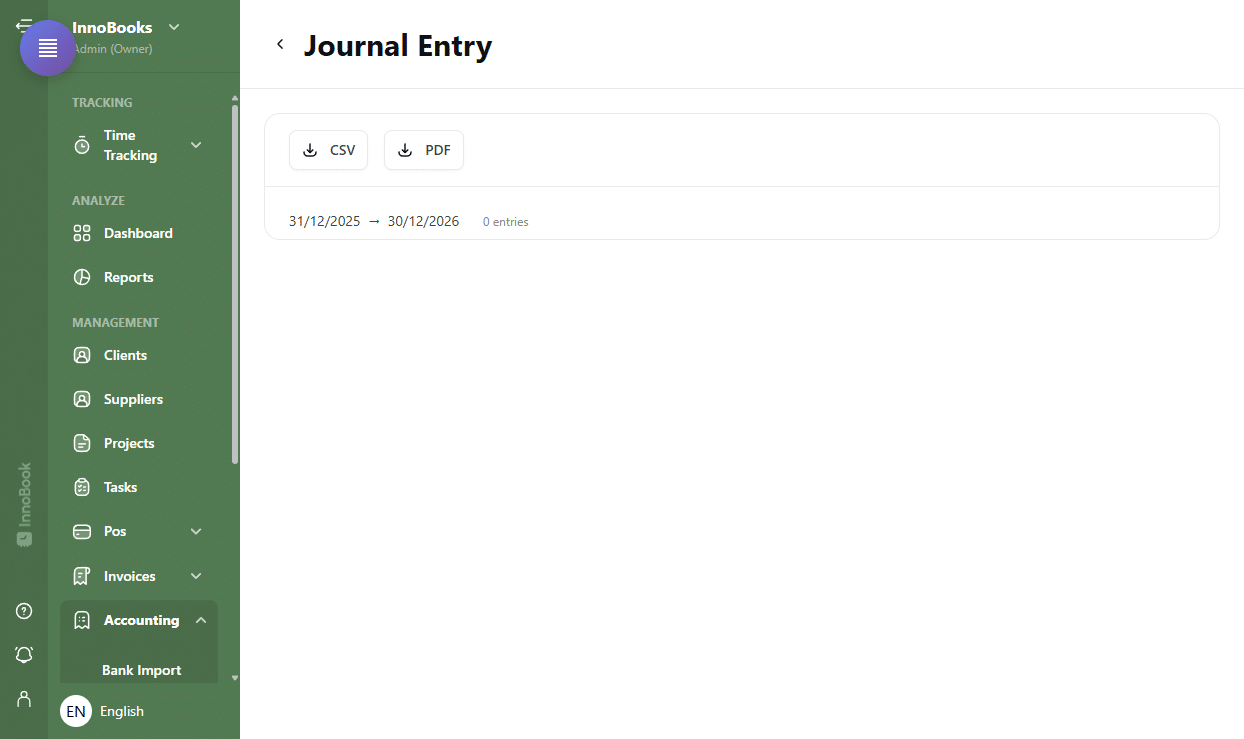
Journal Entrycard. The header shows the period as a date range (start→end) and the number of entries. At the top of the panel, theCSVandPDFbuttons export the report, and the back arrow returns to the previous screen. - Read an entry
Each entry is a section identified by its
number, itsdate, aSourcetag (where the entry comes from, e.g. invoicing, an expense or the POS) and adescription. The Source tag links the entry back to the document that generated it. - Check the debit = credit balance
Under the header, a table lists the entry’s lines with the
Account Code,Account Name,DebitandCreditcolumns. A totals line showsTotal DebitsandTotal Credits: in a valid entry, the two amounts are equal (double-entry bookkeeping). A zero amount in Debit or Credit shows as “—”. - Read the report total and export
At the very bottom, a footer sums the
Total DebitsandTotal Creditsof every entry in the period. To keep or share the journal, clickCSVorPDF.

Tips & edge cases
- This report is read-only: it presents the entries InnoBooks generates from your transactions, each tagged with its
Source. - To correct an entry, edit the original transaction (the invoice, the expense, the sale): InnoBooks regenerates the matching balanced entry.
- The entry
numberand theSourcetag let you link each entry to the document that produced it. - A zero amount in
DebitorCreditshows as “—”; the footer confirms the journal stays balanced over the period. - Amounts use the currency symbol and date format configured for your company.
Frequently asked questions
Can I hand-key a manual journal entry?
The Journal Entry screen is a read-only report: it lists the entries InnoBooks creates automatically from your transactions (invoicing, expenses, POS, payments). There is no manual entry form on this screen; to adjust an entry, go through the original transaction or consult your accountant.
What does the “Source” tag mean?
It shows where the entry comes from — the module or event that generated it (for example an invoice, an expense or a POS sale) — so you can easily trace the supporting document.
Why do debits always equal credits?
Because InnoBooks uses double-entry bookkeeping: every entry balances debits and credits. The Total Debits / Total Credits line on each entry confirms it.