

Item Historybrings together every document an item appears on — invoices, expenses, receipts, stock adjustments and purchase receipts — with the date, supplier and amount. Open a row and you also see how the purchase price changed and the latest price by supplier. Perfect for tracking your product purchases.
What you’ll need
- Permission to view item history.
- At least one item already used on an invoice, expense or receipt.
Steps
- Open the Item History page
From the menu, open
Items & Services, thenItem History. TheItem Historypage lists every movement.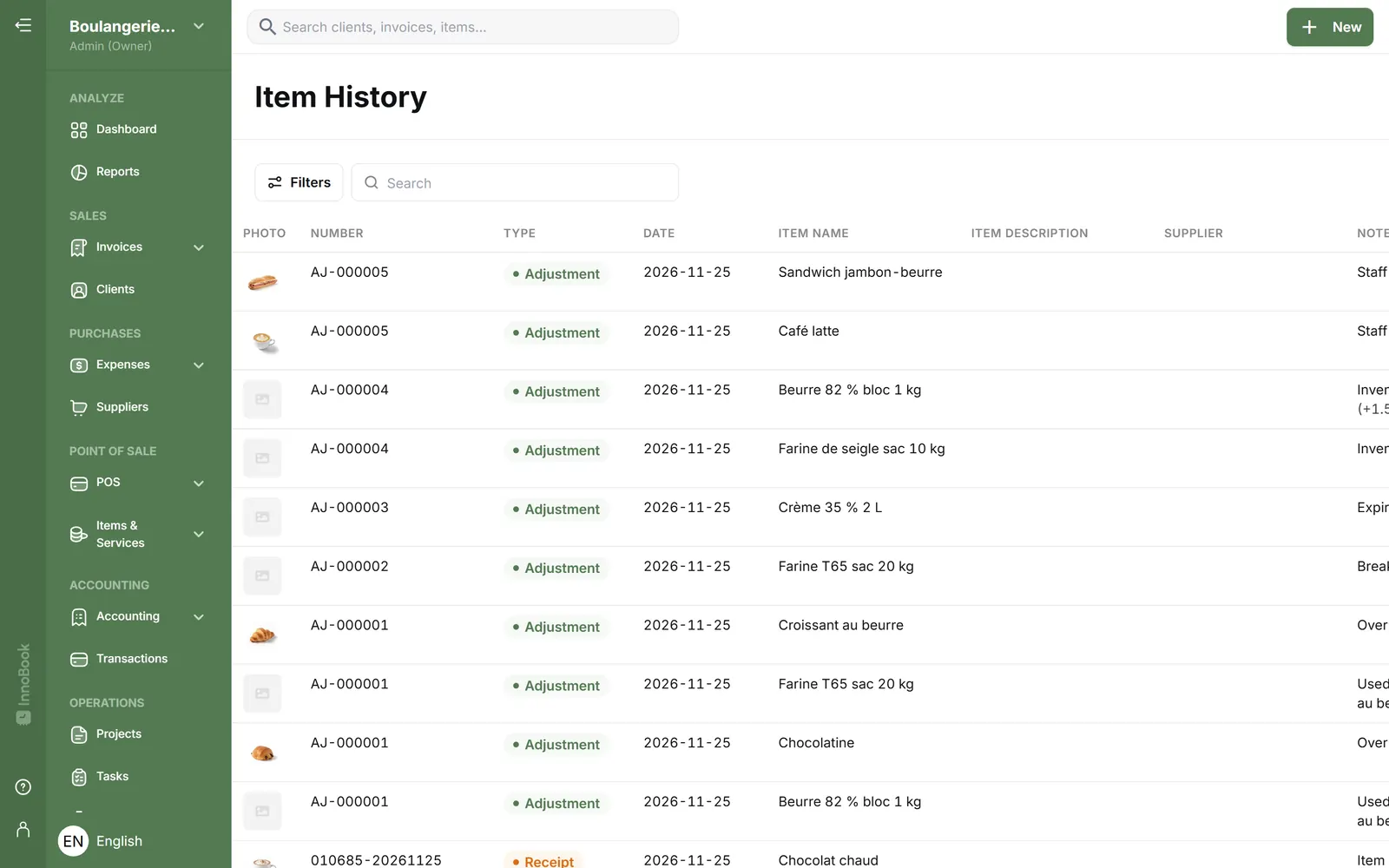
The Item History page: each stock movement with its photo, number, type (here adjustments), date and item, and the filter bar. - Filter the list
Use the
searchbox to find an item by name. Narrow it down with theTypefilter (All statuses,Invoice,Expense,Receipt,AdjustmentorPurchase), theSupplierfilter, and theStart DateandEnd Datefields to target a period. - Read the columns
Each row shows the
Photo, the documentNumber, theType, theDate, theItem name, itsItem description, theSupplierand aNote. Click a column header to sort. - Open an item’s detail
Click a row to open the detail window. At the top, the item’s name and description, then five tabs:
Invoice,Expense,Receipt,AdjustmentandPurchase. TheInvoiceandReceipttabs list the matching documents (number, subtotal, tax, net amount, quantity); theExpensetab shows the expense lines (description, quantity, rate, tax, amount). TheAdjustmenttab lists stock adjustments (date, reason, quantity, unit cost, total cost) and thePurchasetab, purchase order receipts (date, supplier, quantity received, unit cost, amount andStock movement). - Compare purchase prices
The same window shows the
Price historyas a chart, plus aLatest price by suppliertable (columnsSupplier,Latest price,Observed on). If there’s no data yet, it readsNo purchase observations yet.

Tips & edge cases
- Your filters and sort are remembered for the session: you’ll find them again when you return to the page.
- The
Supplierfilter combined with a date range is perfect for checking what you bought from a given supplier. - The
Latest price by suppliertable helps you spot where the same product costs you the least. - An item with no recorded purchase shows no chart: that’s normal until an expense or receipt mentions it.
Frequently asked questions
How do I see every purchase of the same product?
Open Item History, search the product by name, then click one of its rows. The detail window gathers its invoices, expenses, receipts, stock adjustments and purchase receipts, with the price history.
Can I limit the history to a period?
Yes. Set the Start Date and End Date in the filter bar; the list then shows only documents within that range.
Where do the chart’s prices come from?
From recorded purchases (expenses and receipts) for that item. Each purchase adds a price point; the Latest price by supplier table summarizes the most recent price seen from each supplier.