


Invoicing software in Québec isn't just for producing a nice-looking document. It has to produce an invoice your customer can accept, that Revenu Québec recognizes, and that you can still find six years later. Here is what it must do, in the order you'll need it: the invoice itself, numbering, taxes, then everything that happens before and after.
What an invoice must contain in Québec
An invoice with taxes must show your name or your business's name, the date, a description of the goods or services, the amount before taxes, the GST and QST on separate lines, the total, and your GST and QST registration numbers. Without those numbers, your customer can't claim input tax credits. Revenu Québec details these requirements on its Preparing Invoices page.
Good invoicing software fills in these fields for you, once and for all:
- your contact details and your GST and QST numbers, entered once in your profile;
- the customer's contact details, taken from your customer list;
- the invoice number, the invoice date and the due date;
- the description, quantity and price of each item or service;
- the subtotal, the discount if any, the GST, the QST and the total.
For a one-off invoice, our free invoice generator does all of this in your browser, with no sign-up: nothing is sent to our servers, and the invoice can be printed or saved as a PDF.
Numbering: sequential and gap-free
You're free to choose your number format, but numbering must be sequential and gap-free: that is what lets you show that no invoice was removed from your records. A format like F-2026-001 stays readable and sorts correctly.
This is the first thing a spreadsheet gets wrong: you duplicate last month's invoice, forget to change the number, and two invoices carry the same one. Invoicing software numbers every new invoice automatically, and the action history shows what was created, sent, duplicated or cancelled. Our guide on invoice numbering and format in Québec goes further.
GST and QST, calculated and separated
In Québec, a taxable invoice carries two taxes: the 5% GST and the 9.975% QST, each on its own line. The software must calculate them on its own, from prices and quantities, and update them as soon as a line changes or a discount applies.
It must also know when not to charge them. As long as you aren't registered for the tax files, you charge neither GST nor QST: charging taxes without being registered is illegal. Our GST and QST registration threshold checker tells you, from your figures, whether registration becomes mandatory. In InnoBooks, you set your tax rates once, and you can have several depending on your needs.
Before the invoice: the estimate and the time
Many invoices start with an estimate. Invoicing software that also handles estimates saves you from retyping everything: the customer accepts, and the estimate becomes the invoice. For a one-off estimate, our free estimate template works like the invoice generator.
If you bill by the hour, the software must link time to the invoice. In InnoBooks, you import your billable hours and expenses directly into the invoice: you choose the items to include, and the invoice fills itself in. The timesheet gathers the hours of an employee, or of the whole team, for a customer or a project and a period; it exports to PDF, and its hours can become invoice lines, with GST and QST. To stop letting hours slip away, our post on billable time tracking gives seven best practices: log your hours in real time, define what is billable, round the same way every time and bill from timesheets.
After the invoice: sending, follow-up and reminders
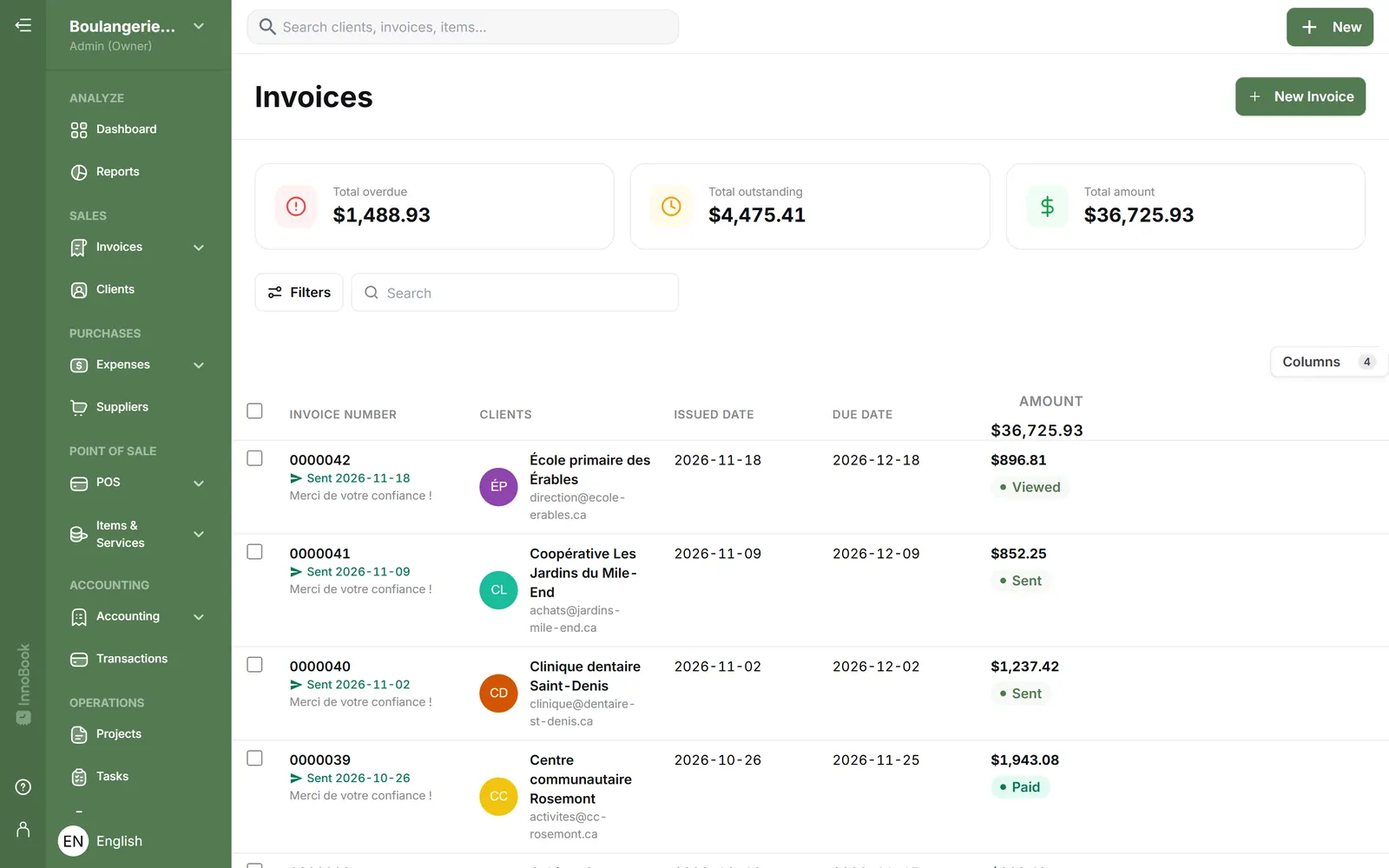
A sent invoice isn't a paid invoice. What saves you time is everything that follows:
- Sending: the invoice goes out by public link, which the customer opens without logging in, and you can send yourself a copy.
- Follow-up: each invoice has a status updated automatically, and tabs (All, Drafts, Overdue…) show at a glance what is waiting.
- Reminders: payment reminders go out automatically, without you having to think about it.
- Payments: payments received and balances are tracked in real time.
- Recurring invoices: a recurring invoice is set up once, with its frequency, weekly or monthly, and is recreated every period.
Saved invoice templates and attachments round it out: an invoice that looks like the previous one is redone in one click, and the contract or delivery slip travels with it.
Free to start: generator or account?
Both are free with us, and they don't meet the same need.
- The generator for a free invoice suits an occasional invoice. It keeps nothing with us: your draft stays in this browser only, and it disappears if you clear your browsing data.
- The InnoBooks account suits you as soon as you invoice every month. It keeps your customers and items, numbers your invoices automatically and tracks the payments you receive. The account is free forever, with no credit card.
Questions to ask before choosing
Before entrusting your invoicing to software, ask it these questions:
- Does it handle GST and QST separately, on separate lines?
- Is it truly available in French, both the invoice and the interface?
- Does it number invoices without gaps, automatically?
- Does it link estimates, time and expenses to the invoice?
- Does it follow up late customers for you?
- Where is your data hosted?
InnoBooks was designed and developed in Québec: it creates, sends and tracks your invoices, with GST and QST calculated, and its data is hosted in Canada. To compare more broadly, our guide to choosing accounting software in Québec reviews the criteria that matter for a small business.
Where to start
Make your next invoice with the free generator to see what a complete invoice looks like. When you're tired of retyping your customers and your numbers, the invoicing for self-employed workers page shows what the account does, free forever.
Expenses, estimates and recurring invoices: Professional Access, $10/month. First paid subscription: 15-day free trial, card required. See the plans