

The InnoBooks
Exportpage generates files compatible with your accounting software:CSVorIIF. Three destinations are supported —Sage 50,QuickBooks DesktopandQuickBooks Online— each with its master data (customers, vendors, items) and transactions (sales, purchases, payments). You can download one file at a time or grab everything in a single ZIP archive.
What you’ll need
- The
reports.exportpermission on your role (andsettings.export.readto see the tile in Settings). - Your data already entered in InnoBooks: customers, vendors, invoices, expenses and payments.
- The target accounting software installed or accessible:
Sage 50,QuickBooks DesktoporQuickBooks Online.
Steps
- Open the Export page
From
Settings(the tile’s subtitle is “Quickbooks and Sage”) or fromAccounting, open theExporttile. An info box states the goal:Export your data to accounting software— “Generate CSV or IIF files compatible with your accounting software. Click on individual items or download everything at once.”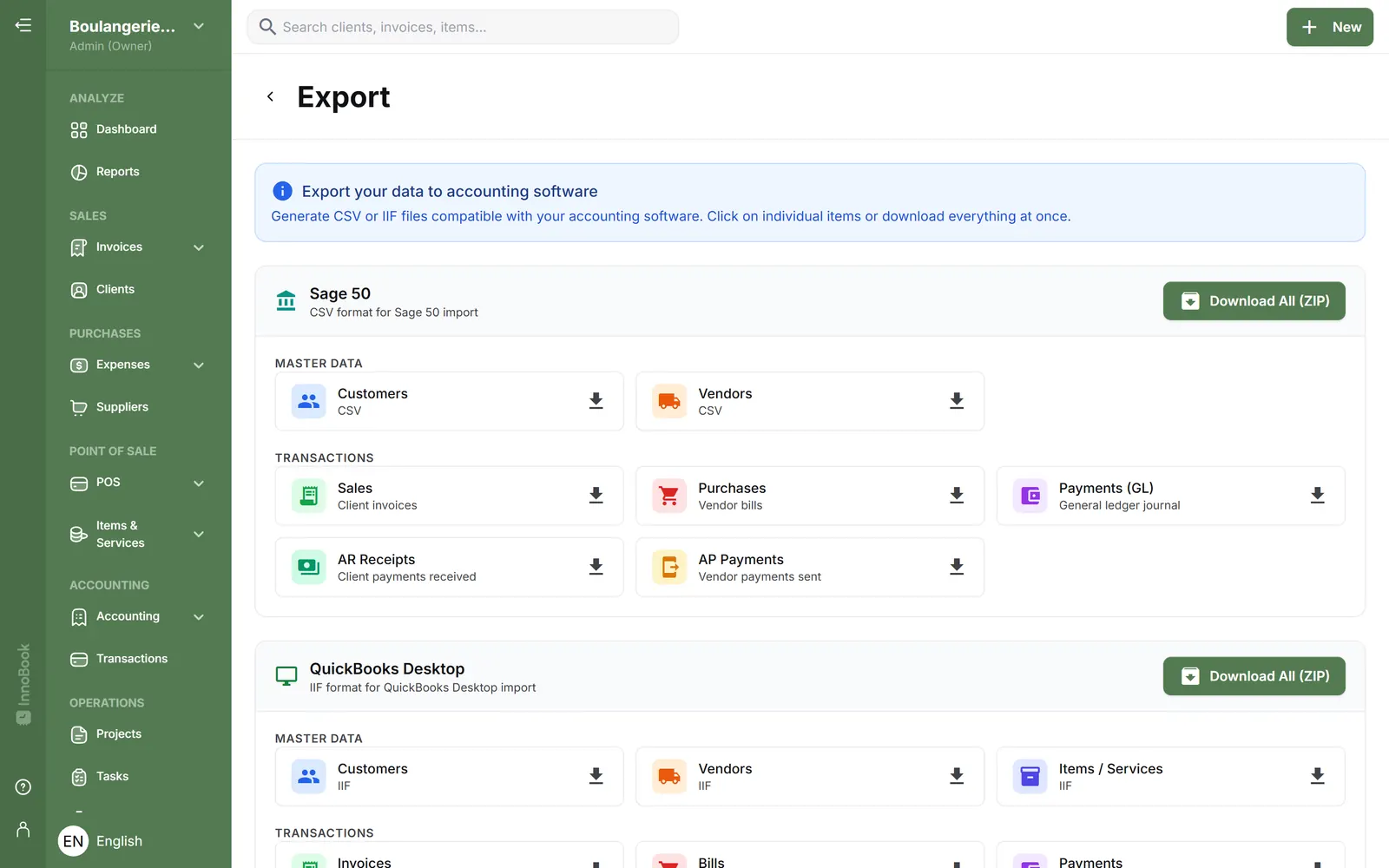
The Export page: the information box, then the Sage 50 and QuickBooks Desktop files, one by one or all together as a ZIP. - Choose your software and the right format
Find the section for your software. Each section states its format:
Sage 50→CSV format for Sage 50 import;QuickBooks Desktop→IIF format for QuickBooks Desktop import;QuickBooks Online→CSV format for QuickBooks Online import. Each card also shows its file format (CSV or IIF). - Export the master data
In the
Master Datablock, click the card you need to download the file:CustomersandVendors(all three tools), plusItems / Servicesfor QuickBooks Desktop orProducts / Servicesfor QuickBooks Online. Clicking a card immediately starts the download of the matching file. - Export the transactions
In the
Transactionsblock, click the data to export. ForSage 50:Sales(Client invoices),Purchases(Vendor bills),Payments (GL)(General ledger journal),AR Receipts(Client payments received) andAP Payments(Vendor payments sent). ForQuickBooks DesktopandQuickBooks Online:Invoices,BillsandPayments. - Or download everything at once
To grab a whole section in one go, click
Download All (ZIP)at the top-right of the section. InnoBooks bundles all of that software’s files into a single ZIP archive (for examplesage-all.zip,qbd-all.ziporqbo-all.zip). - Import into your accounting software
Then open your software and use its import function:
CSVfiles for Sage 50 and QuickBooks Online,IIFfiles for QuickBooks Desktop. Import theMaster Data(customers, vendors, items) first, then theTransactions, so invoices and payments link back to the right customers and accounts.

Tips & edge cases
- Clicking a card downloads one file; the
Download All (ZIP)button bundles the whole section. - Formats are fixed per software:
Sage 50andQuickBooks OnlineuseCSV,QuickBooks DesktopusesIIF. - Sage 50 offers finer payment exports than QuickBooks: separate
Payments (GL),AR ReceiptsandAP Payments. - QuickBooks Desktop exports
Items / Serviceswhile QuickBooks Online exportsProducts / Services— same idea, wording specific to each product. - Always import the
Master Databefore theTransactionsto avoid missing references.
Frequently asked questions
Which format do I get for each software?
Sage 50 and QuickBooks Online produce CSV files; QuickBooks Desktop produces IIF files. The format is also shown on each card and in the section header.
Can I export everything at once?
Yes. Each section has a Download All (ZIP) button that bundles all of its files into a single ZIP archive, instead of clicking card by card.
What do the Sage 50 “Payments” exports contain?
Sage 50 separates three flows: Payments (GL) (the general ledger journal), AR Receipts (client payments received) and AP Payments (vendor payments sent).