
The digital certificate is what lets InnoBooks produce and sign your MEV-WEB receipts for Revenu Québec. This guide shows you how to request your certificate, fill in the enrollment form, confirm the status is
Valid, and replace it before it expires. Keep your tax identifiers handy.
What you’ll need #
- The POS add-on active on your company (the MEV-WEB module depends on it).
- Permission to open the MEV-WEB settings (
settings.mevweb.read). - Your
Operator Identification NumberandSector and Authorization Code(format AAA-X9X9-X9X9), provided by Revenu Québec. - Your
TVQ Number(format 1234567890TQ0001) and yourMandatory Billing File Number. - Your MEV-WEB configuration already filled in (SEV Identifier, Authentication Key).
Steps #
- Open the Digital Certificate card
In the
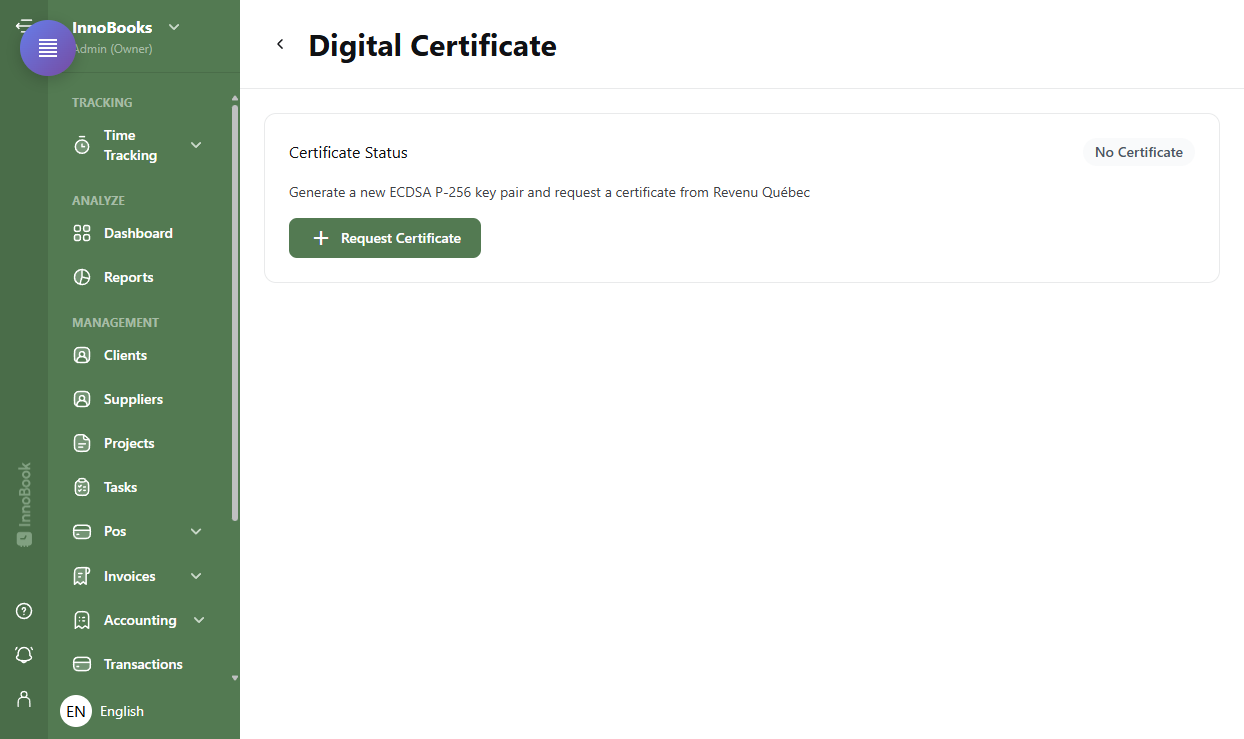
MEV-WEB (Revenu Québec)settings, find theDigital Certificatecard and click it. It shows the current status:No Certificate,Valid,Expiring SoonorExpired. With no certificate, you’ll see the prompt to generate one.
The Digital Certificate card with the status pill and the Request Certificate button. - Click “Request Certificate”
Click
Request Certificate. This first click just opens the enrollment form, where you enter the operator details. The new ECDSA P-256 key pair is generated and the request sent to Revenu Québec only when you submit the completed form. - Fill in the enrollment form
Enter the
Operator Identification Number, theSector and Authorization Code(format AAA-X9X9-X9X9), theTVQ Number(format 1234567890TQ0001) and theMandatory Billing File Number. TheUTC Timezoneis prefilled to -05:00 (Québec time), and you can add an optionalNickname(8-32 ASCII characters) to recognize the certificate later. Then clickRequest Certificateto send the request. - Confirm the “Valid” status
Once the request is accepted, the status changes to
Valid. The card then shows theSerial Number, theIssued Ondate, theExpires Ondate, and thePrivate KeyandPSI Certificate (RQ)indicators ticked. Your receipts can now be signed and transmitted. - Replace the certificate as expiry approaches
At mid-life, InnoBooks shows the warning
Certificate is past mid-life (2.5 years). Replacement recommended.and the status becomesExpiring Soon. ClickReplace Certificate: the enrollment form reopens. Enter the operator details again, then submit the request — a new certificate then takes over without interrupting your sales.
Tips & edge cases #
- Expected formats: the
Sector and Authorization Codefollows the AAA-X9X9-X9X9 format and theTVQ Numberthe 1234567890TQ0001 format. InnoBooks rejects an incorrect format before sending. - Replace rather than delete: to rotate a certificate, use
Replace Certificate.Delete Certificateremoves it — and without a valid certificate, invoices cannot be produced. - Optional nickname: a
Nickname(8-32 ASCII characters) helps identify the certificate in the list, with no effect on compliance. - Timezone: the
UTC Timezonefield is prefilled to -05:00; adjust it only if your situation requires it. - Where to find your codes: the sector, authorization code and billing file number come from Revenu Québec — see revenuquebec.ca or your accountant.
Frequently asked questions #
What does the “Expiring Soon” status mean? #
It means the certificate is past its mid-life (2.5 years) and a replacement is recommended. Click “Replace Certificate” to reopen the enrollment form, re-enter the operator details and generate a new one before it expires, without interrupting your sales.
What happens if I delete my certificate? #
Deletion cannot be undone and, without a valid certificate, invoices can no longer be produced. Prefer “Replace Certificate” for a rotation. Only delete if you know why.
Where do I find my sector and authorization code? #
These details, like the mandatory billing file number, come from Revenu Québec. InnoBooks does not invent them: check revenuquebec.ca or your accountant.


