
Push notifications let you tell your customers about a promotion right inside their app. You first create a bilingual template (title and message in French and English), with an optional link, then send it to your whole customer base or a selection of customers. Here’s how.
What you’ll need #
- The POS add-on enabled and point-of-sale access.
- Saved customers using the mobile app to receive notifications.
- Note: this page shows several labels in English, even when the app is in French.
Steps #
- Open the notifications page
From the menu, open the
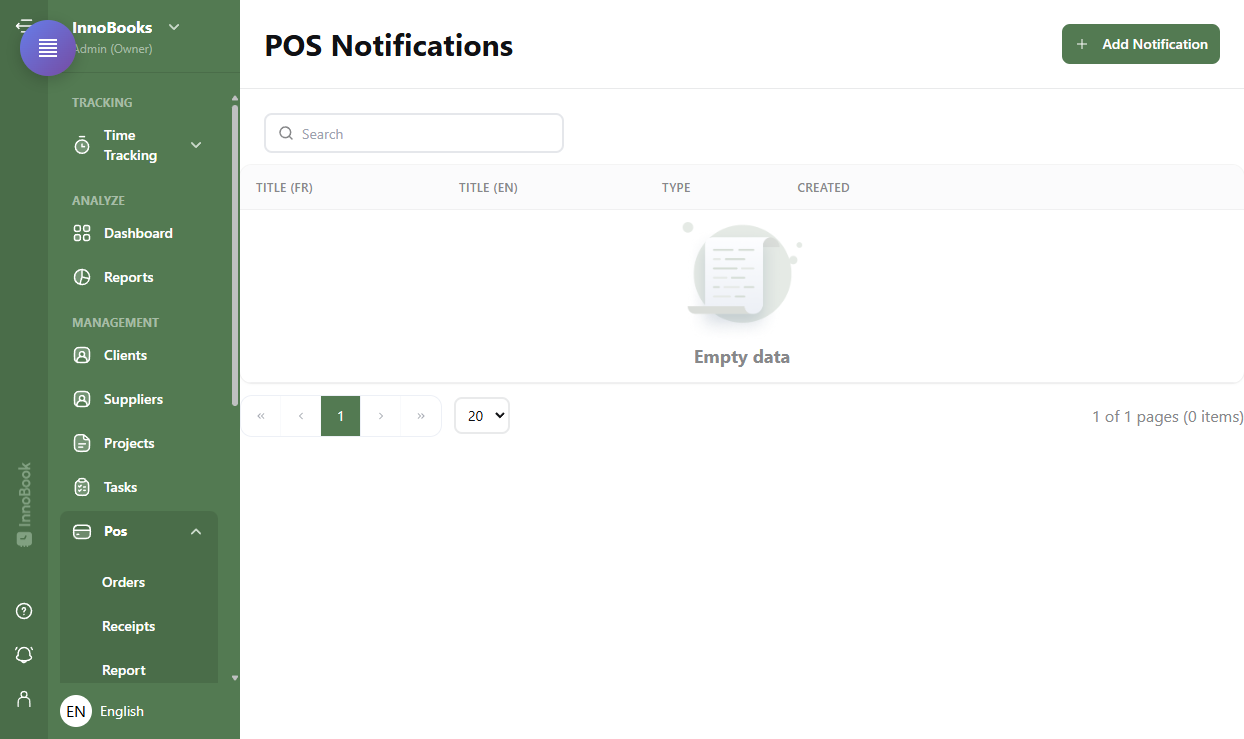
POS Notificationspage. It lists your templates with theTitle (FR),Title (EN),TypeandCreatedcolumns. Use the search bar to filter.
The POS Notifications page with the Add Notification button at the top right. - Create a notification template
Click
Add Notificationto open theCreate Notificationwindow. InNotification Type, choose theType(for examplePromotions). - Enter the bilingual content
In the
Contentsection, fill in both languages (“Enter the title and message in both languages”). UnderFrench, enter theTitleandMessage; underEnglish, do the same. Each customer will see the notification in their language. - Add a promotion link (Optional)
In the
Promotion Linksection, paste an address in theURLfield (for example https://example.com/promotions/…). When the customer taps the notification, this link opens. ClickCreateto save the template. - Send the notification
On the template row, click
Send notificationto open theSend Notificationwindow. TheNotification Contentsection recaps the title and message. Turn onSend to all customersto target your whole base, or leave it off and clickSelect Customersto pick specificCustomers. Then clickSend. - Edit or delete a template (Optional)
On the template row, the pencil icon opens the
Edit Notificationwindow (Updatebutton). The trash icon starts aDelete Notificationconfirmation before removing it.
Tips & edge cases #
- Title and message are required in both languages: an empty field shows “This field is required”.
- The
URLfield in thePromotion Linksection acts as a deep link: it takes the customer to your promotion when the notification is opened. - Use the list search bar to quickly find a template by its title.
- The
Typecolumn shows a badge (for examplePromotions) so you can spot the nature of each template.
Frequently asked questions #
Do I have to fill in the title and message in both languages? #
Yes. The Content section asks for a Title and a Message in French and English. Each customer receives the notification in their language.
How do I send to all my customers at once? #
In the Send Notification window, turn on the Send to all customers toggle, then click Send. To target specific people, leave it off and use Select Customers.
Can I add a link to my promotion? #
Yes. In the Promotion Link section, enter the address in the URL field. This link opens when the customer taps the notification.
Can I edit or delete a template? #
Yes. The pencil icon opens Edit Notification (save with Update) and the trash icon deletes the template after a Delete Notification confirmation.


